CryptPeer — User guide
(Version 1.0 – January 2026)
Thank you for choosing CryptPeer, a sovereign secure messaging system
designed to protect the confidentiality and integrity of your
communications.
This guide covers the essential steps for day-to-day use of CryptPeer,
from signing in to managing your conversations and contacts.
Create your account and access CryptPeer
Step 1 — Open CryptPeer in your browser
You access CryptPeer directly in a web browser; no prior installation is required.
Open your browser (Chrome, Edge, Firefox, Safari, etc.) and enter the URL provided by your licensed organisation, for example: https://cryptpeer.[your-organisation-name].com
Always use the link officially communicated by your organisation.
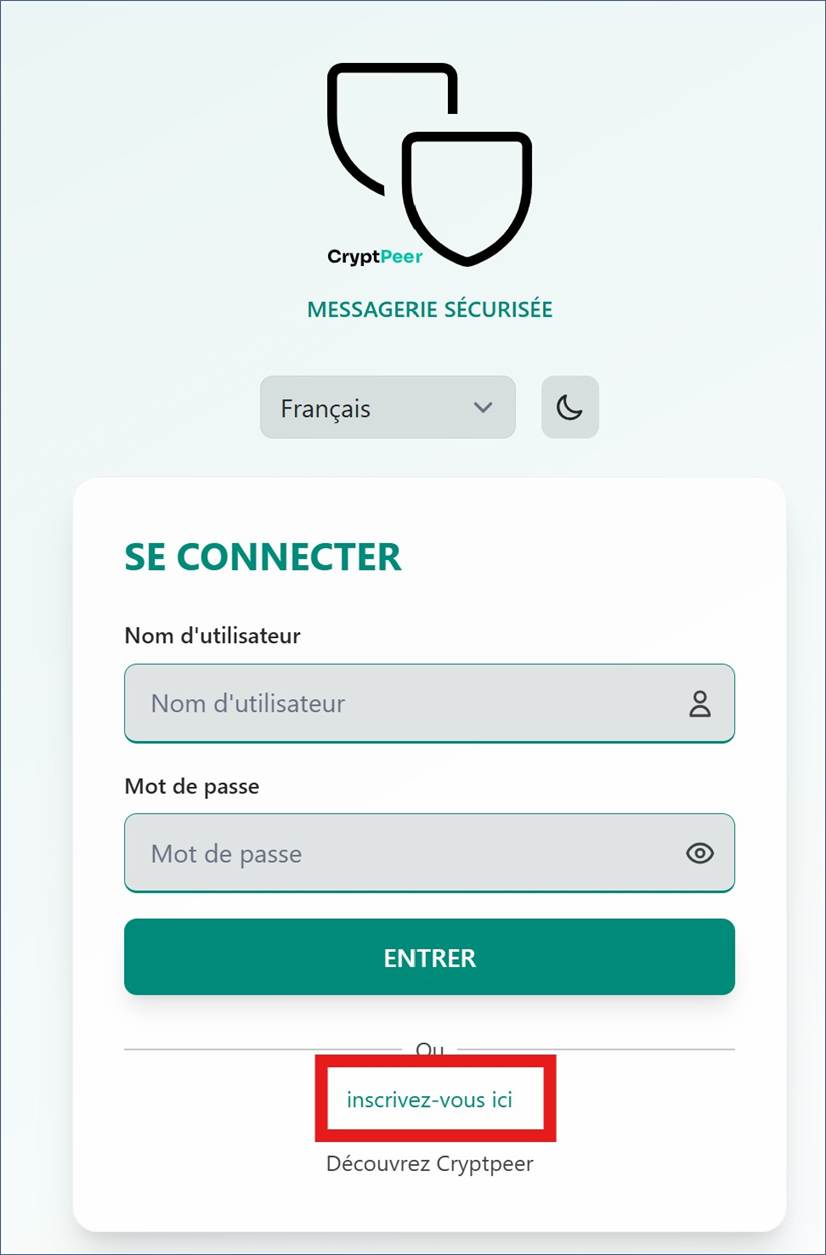
Step 2 — Sign up
On the home page, click register here (or the equivalent sign-up link).
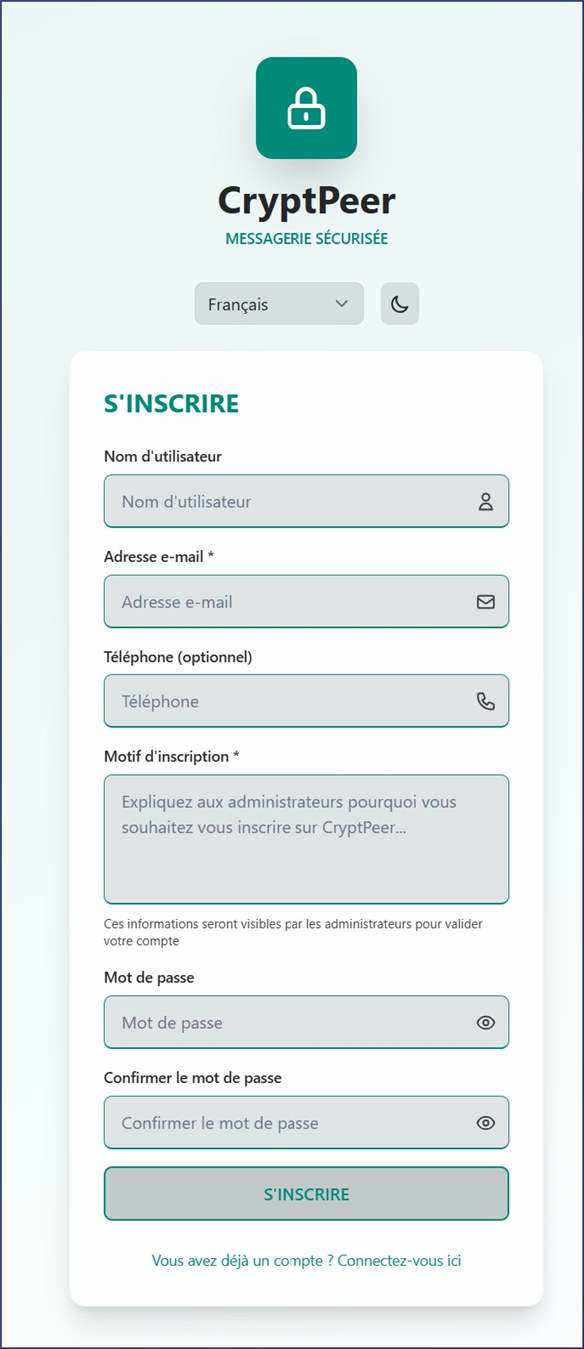
The registration form lets you enter:
Username
Email address (required)
Phone (optional)
Reason for registration — a short explanation visible only to administrators
Password and password confirmation
This information helps the administrator identify your request and approve your access. Your registration stays pending until it is approved.
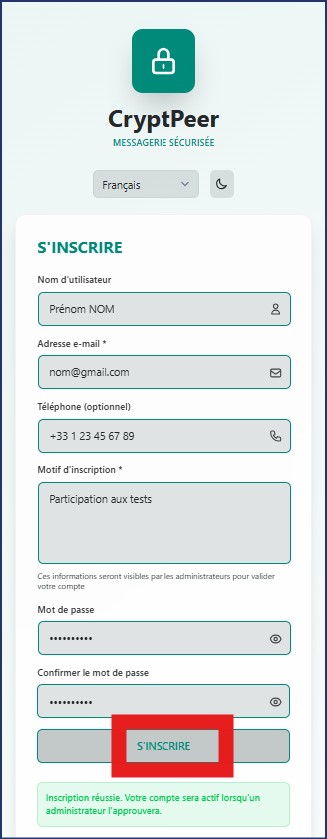
Step 3 — Complete registration
After filling in all fields, click SIGN UP (or equivalent). A message confirms that your registration was submitted.
Your request is sent to the administrator for validation.
You will receive an email when your account is activated.
Until your account is activated, you cannot access your mailbox yet.
Access is enabled automatically once the administrator has validated your profile.
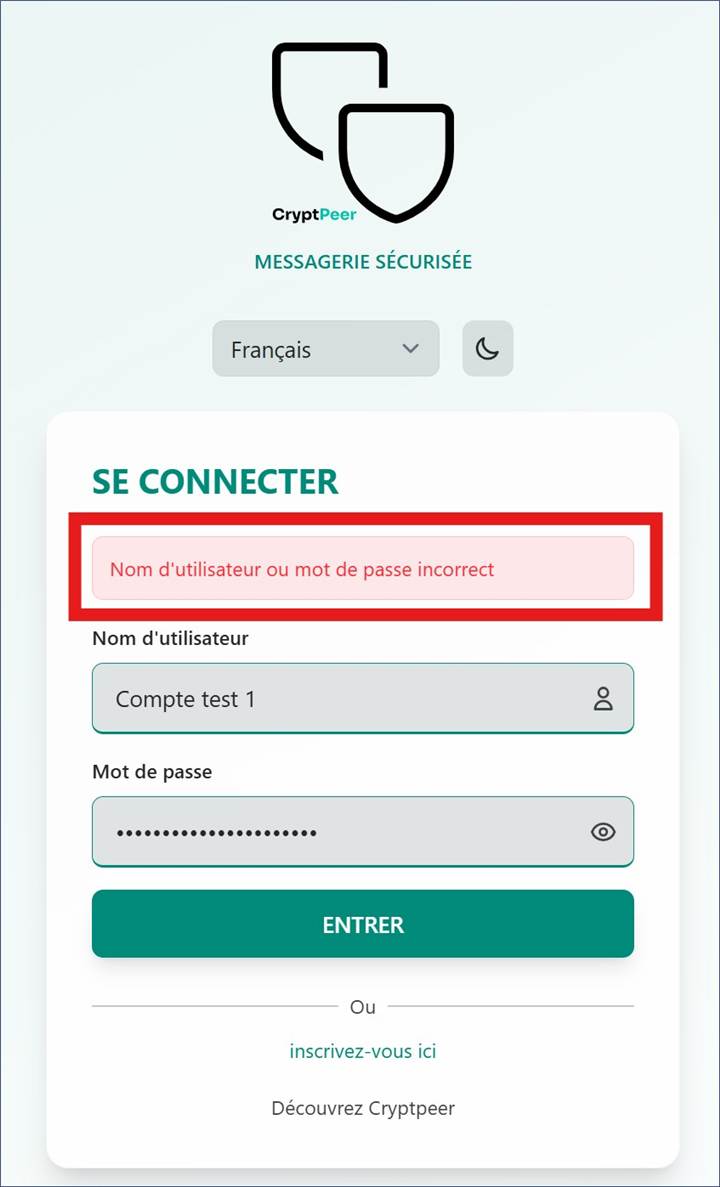
Step 4 — Sign in after validation
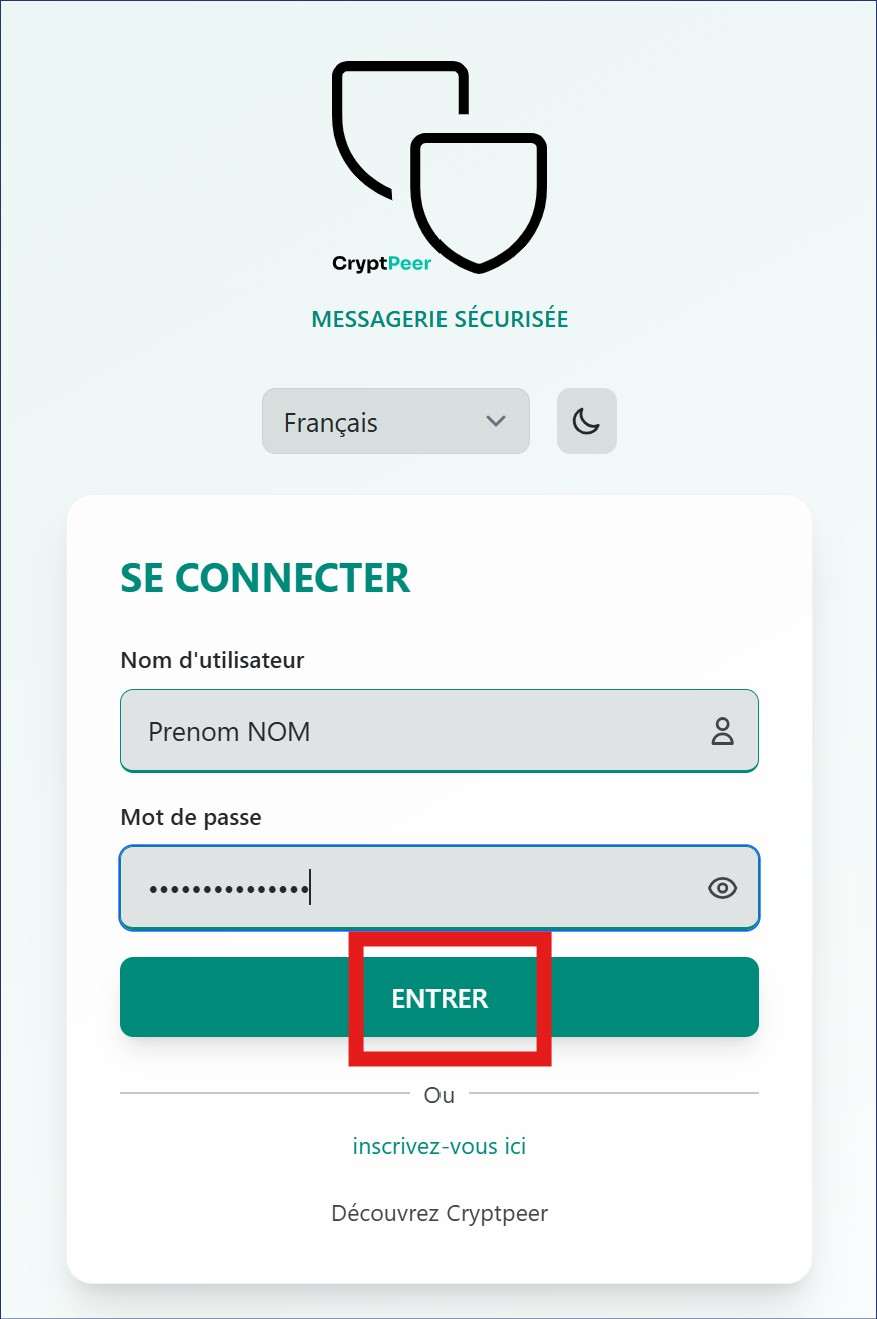
Once the administrator has activated your account, you can sign in from the home page.
Open the official sign-in link.
Enter your username and password.
Click Sign in (or equivalent) to open your secure space.
The home page opens.
CryptPeer runs exclusively over secure HTTPS.
Your credentials never leave the environment controlled by your licensed organisation.
Step 5 — Add a shortcut to CryptPeer on your phone
This lets you open CryptPeer quickly from your phone’s home screen, similar to an app.
On Android
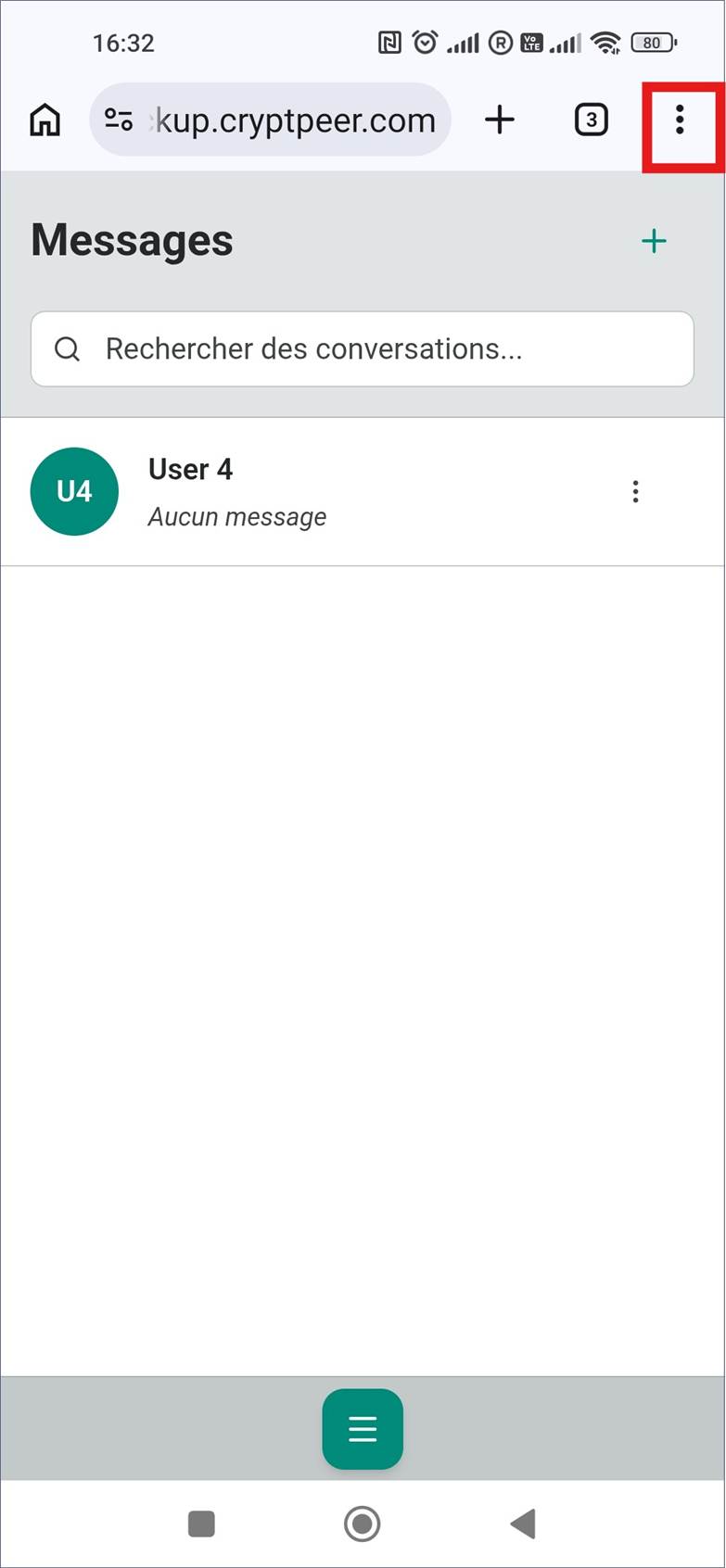
Open your browser (e.g. Chrome).
Go to the CryptPeer URL.
Open the menu (three dots, top right).
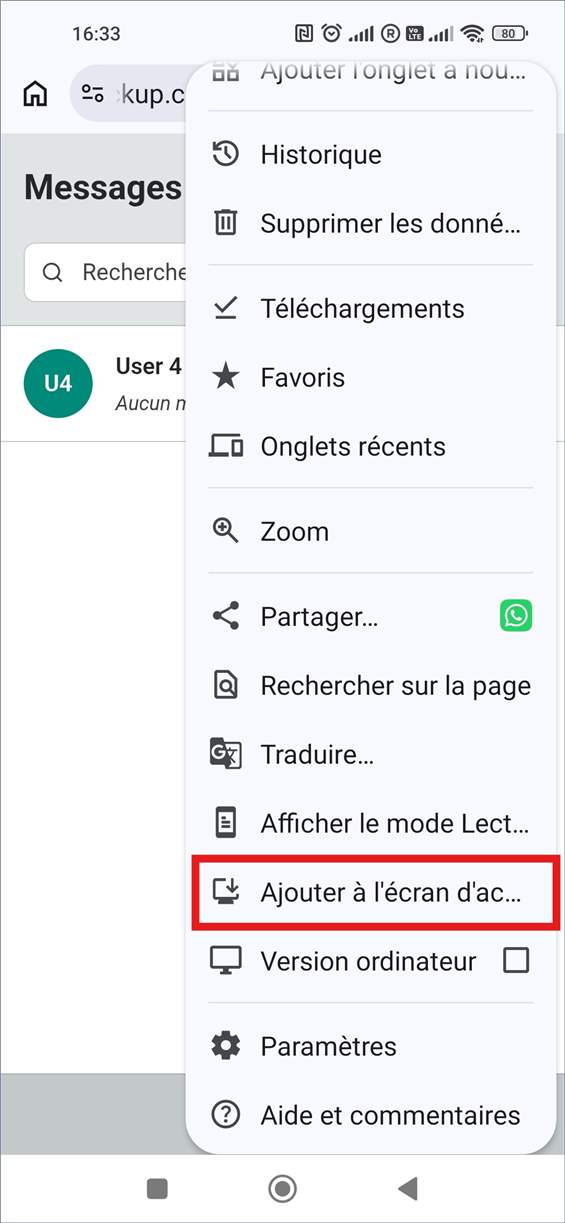
Choose Add to Home screen.
Name the shortcut (e.g. “CryptPeer”).
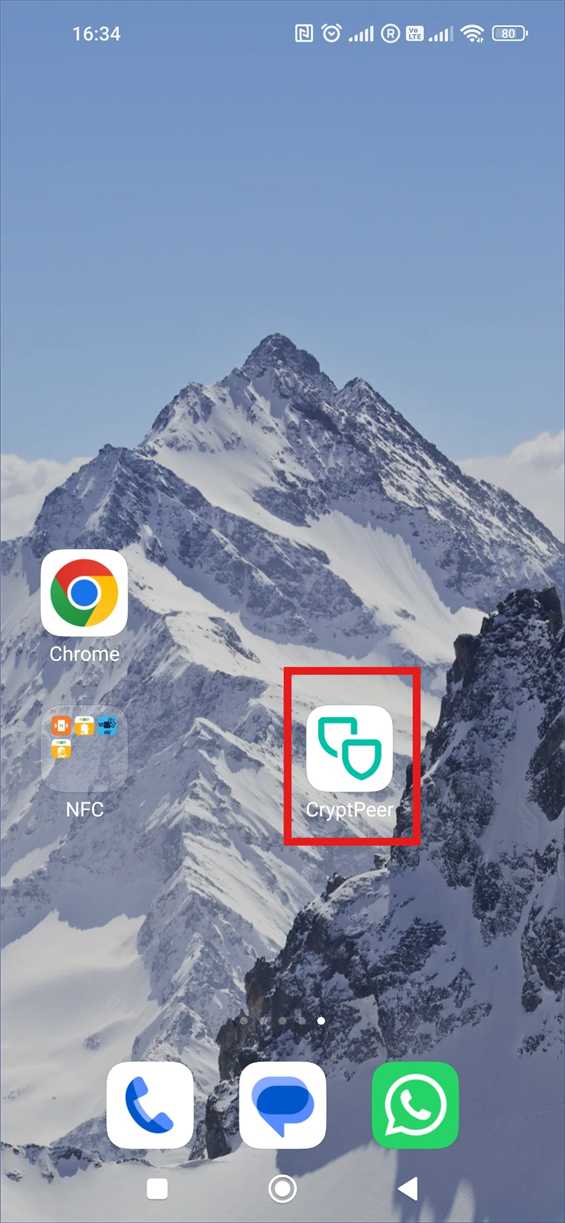
Confirm: the CryptPeer icon appears on your home screen.
On iPhone (iOS)
Open Safari.
Go to the CryptPeer URL.
Tap the share button (square with an arrow pointing up).
Select Add to Home Screen.
Name the shortcut.
Tap Add: the CryptPeer icon is added to your home screen.
Step 6 — Home page overview
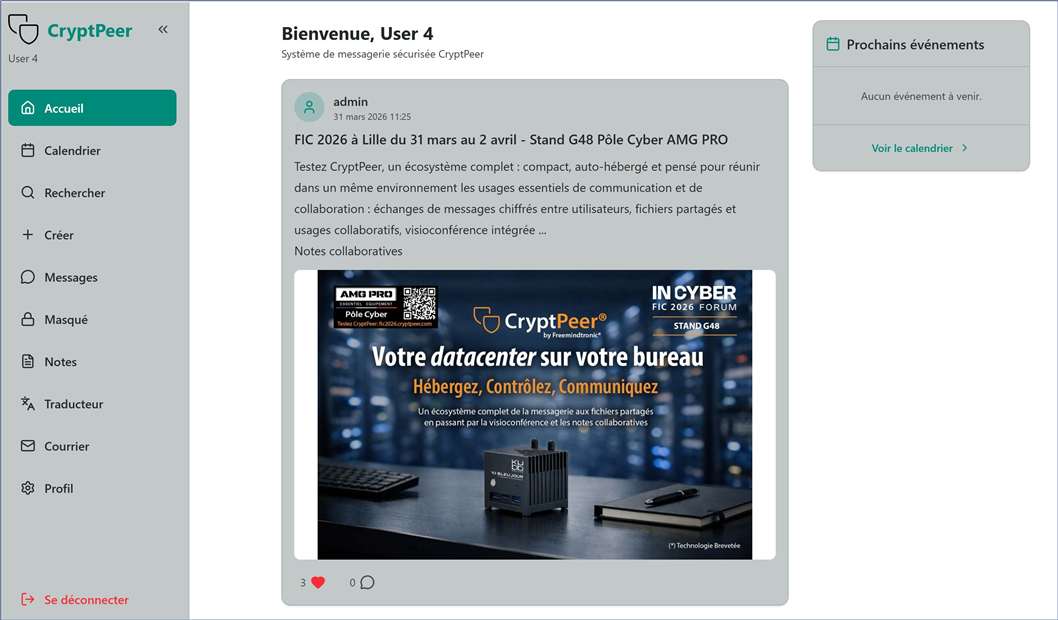
After you sign in, you are taken to your CryptPeer home page.
It shows the main messaging features:
Calendar — manage events
Search — find and contact other authorised users
Create — start a new conversation or group
Messages — open private or group conversations
Hidden, Notes, Translator, Mail, Profile — additional tools for organisation and privacy
Note:
How do you communicate with other users?
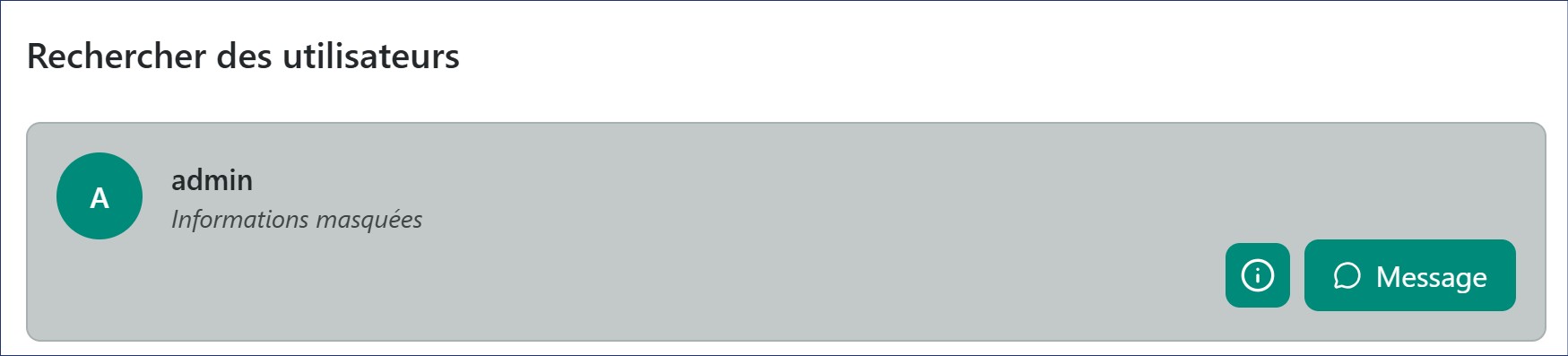
Click the Search tab in the left-hand sidebar.
Once your account is validated, you automatically have access to the
admin user, who can answer questions or point you in the right direction.
You will then be added to one or more categories, which lets you see and contact other authorised users.