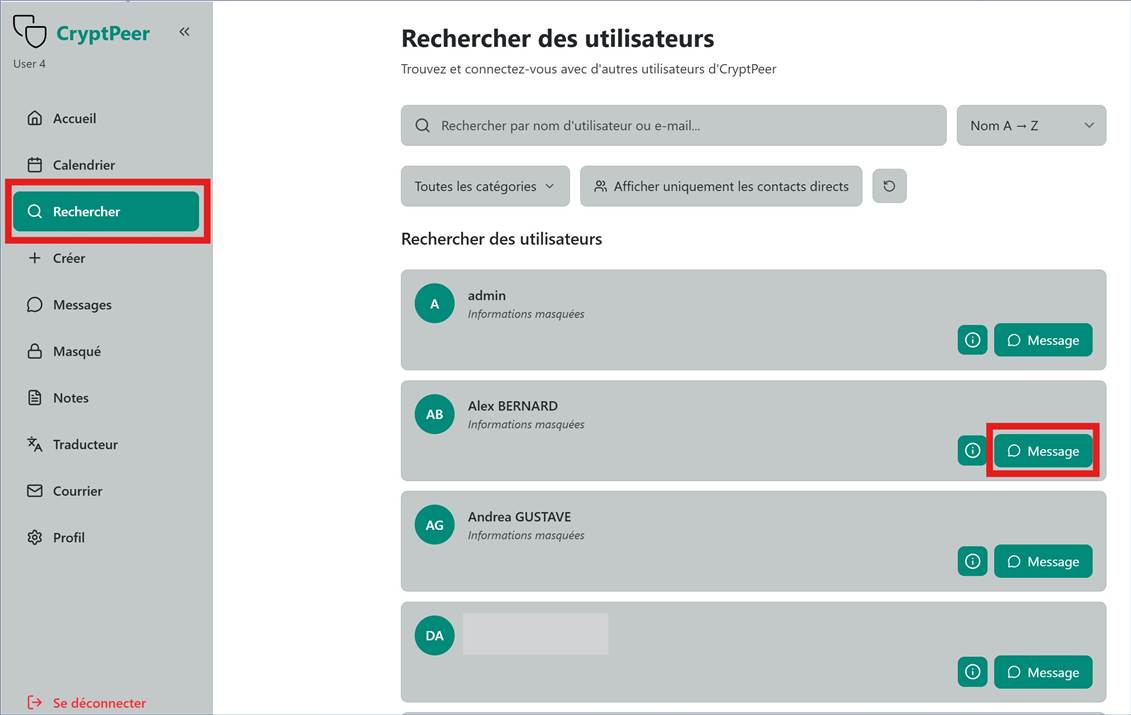
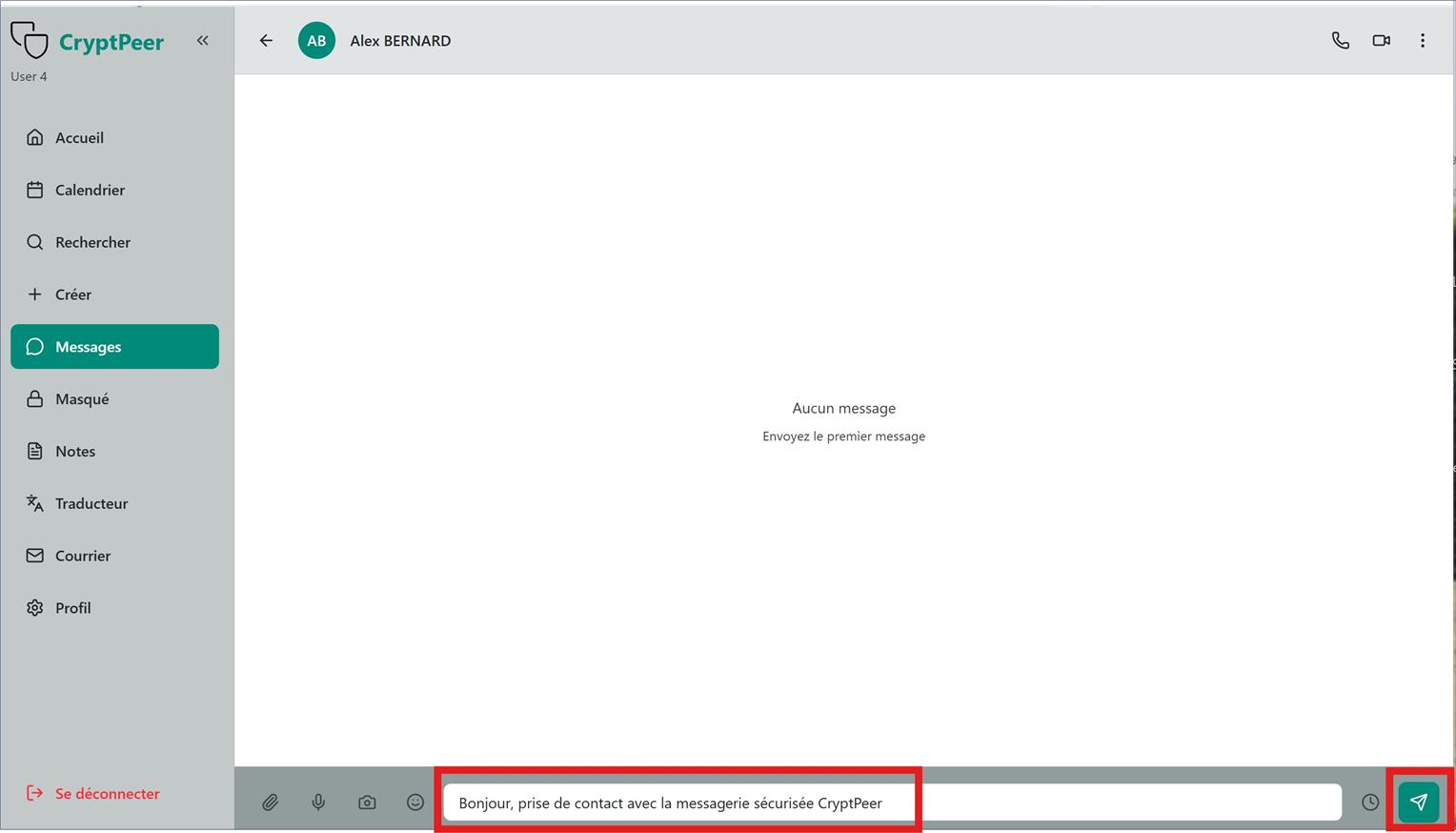
(All messages are end-to-end encrypted to protect confidentiality.)
Image: Composing a message
2. Create a group conversation
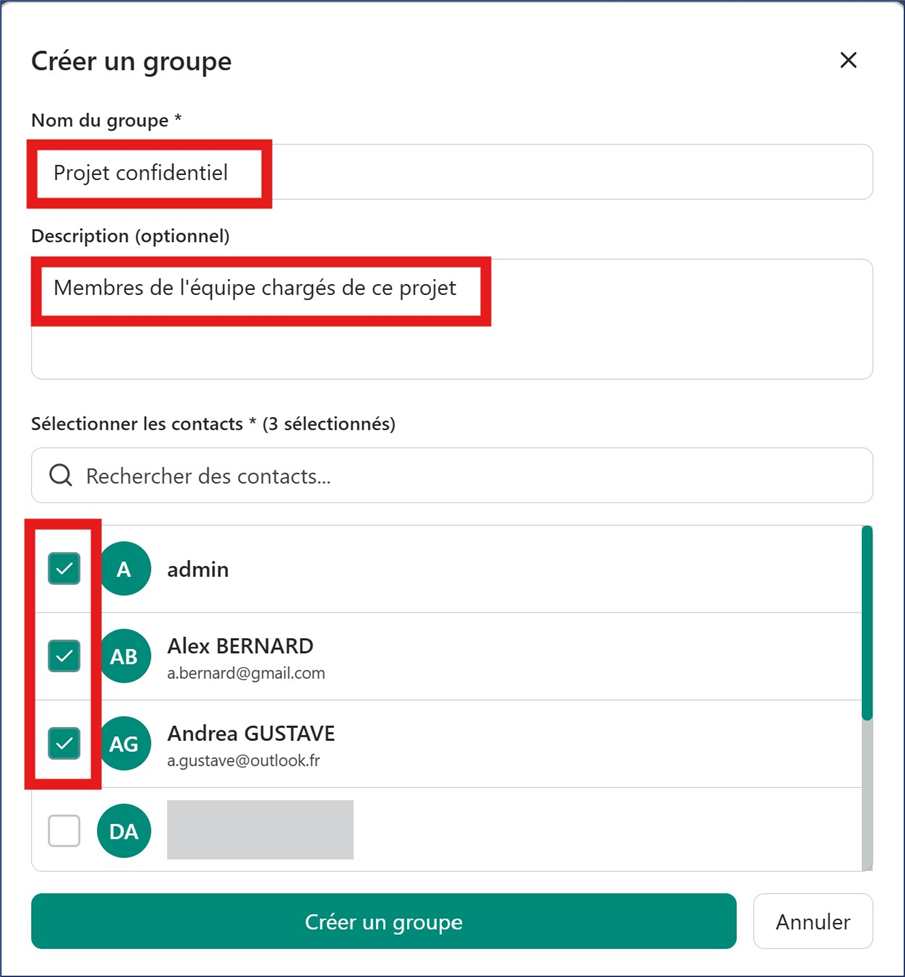
In the Create tab, tap Create a group
Give the group a name and add a description
Add authorised users
Tap Create a group at the bottom of the page
Image: Creating a group conversation
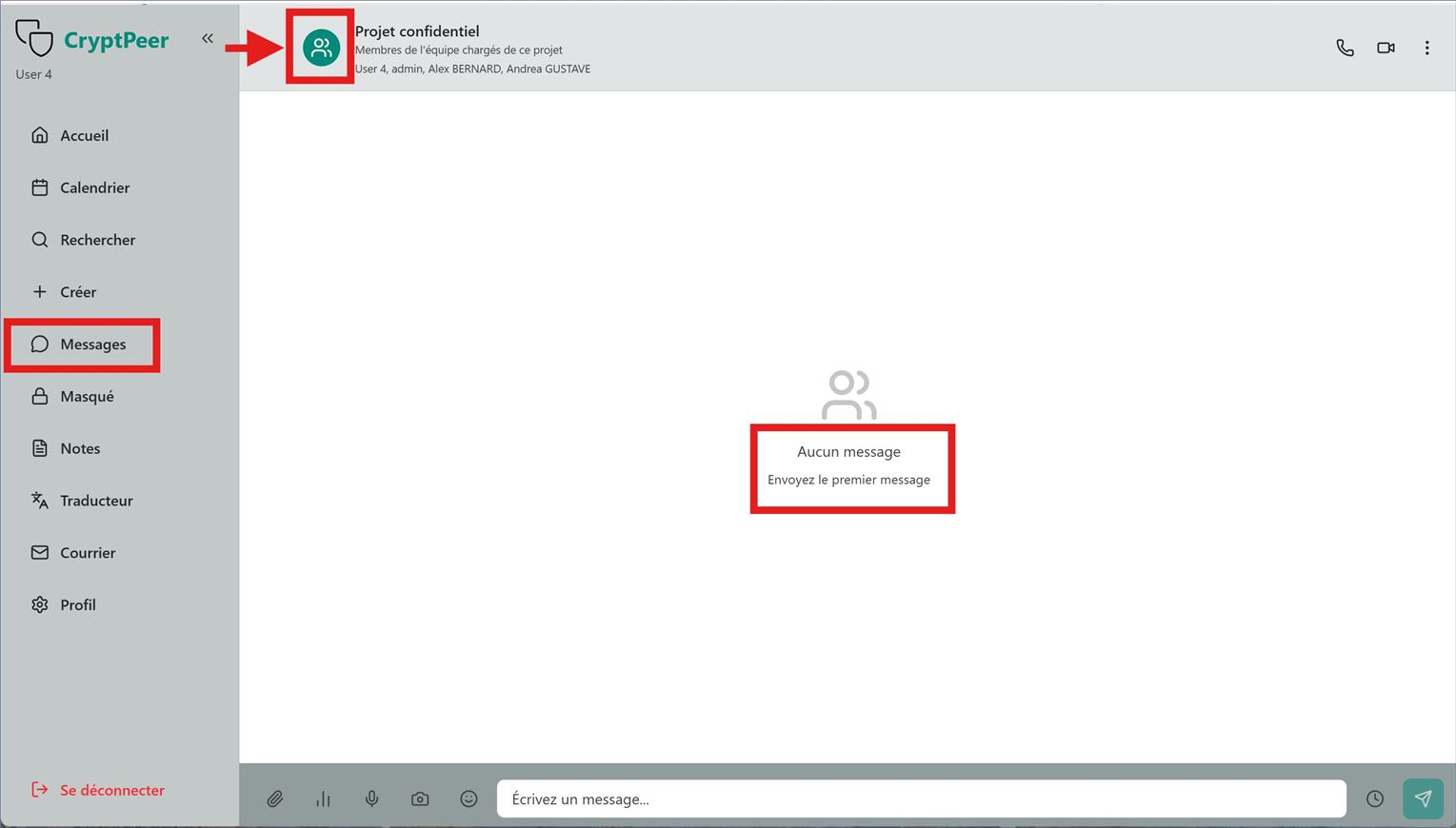
When the group exists, go back to home, open Messages, tap the new group name and write your first message. The icon next to the group name [1] shows it is a group.
Image: Writing a message in a group
Chats inside this group are not shown on participants’ individual account views.
3. Hidden tab — one-to-one conversation
Works like a normal chat (send, receive, manage).
Difference: messages appear encrypted.
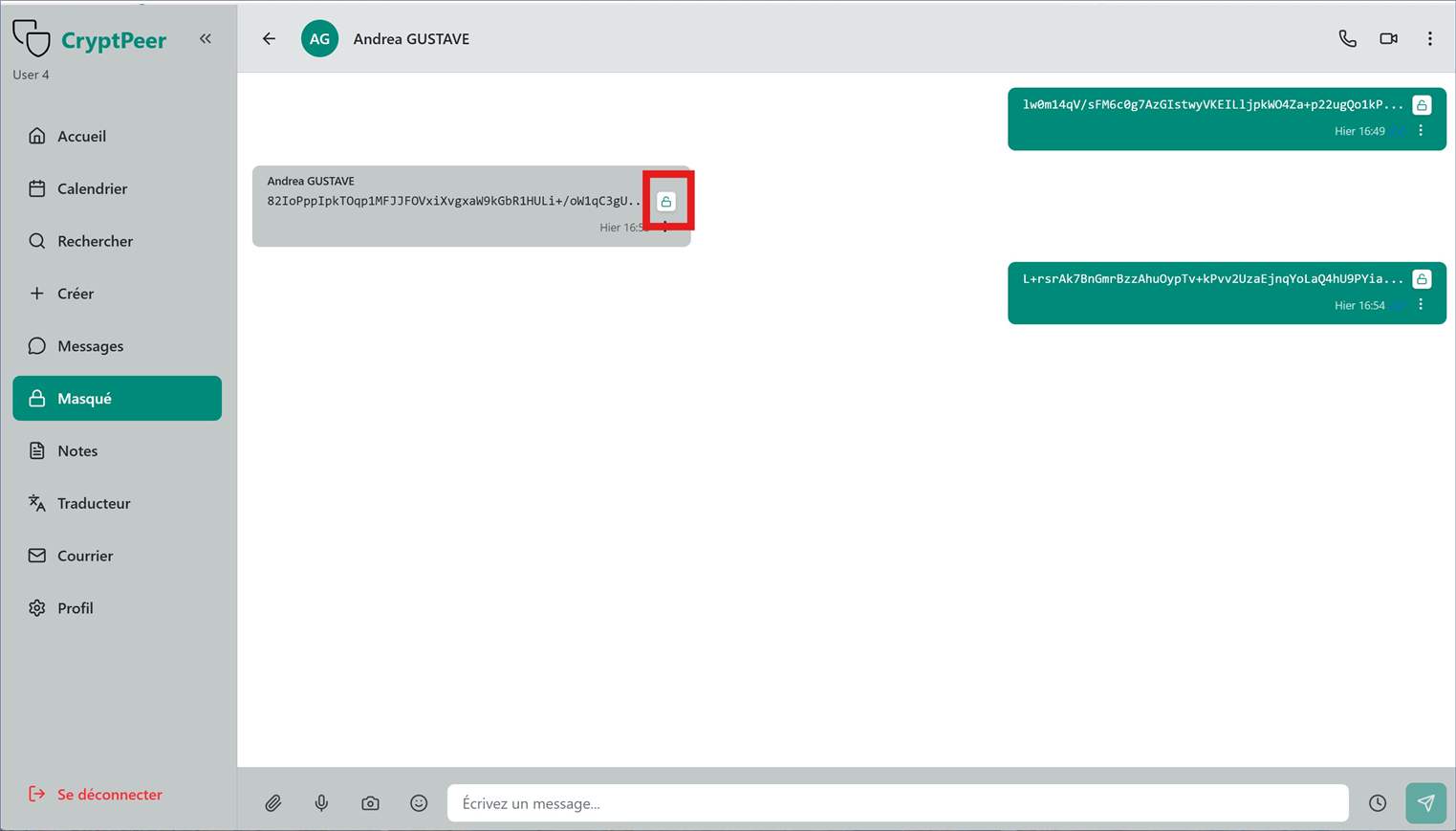
Tap the padlock icon to decrypt and read.
Useful for keeping sensitive chats in a separate, secure space.
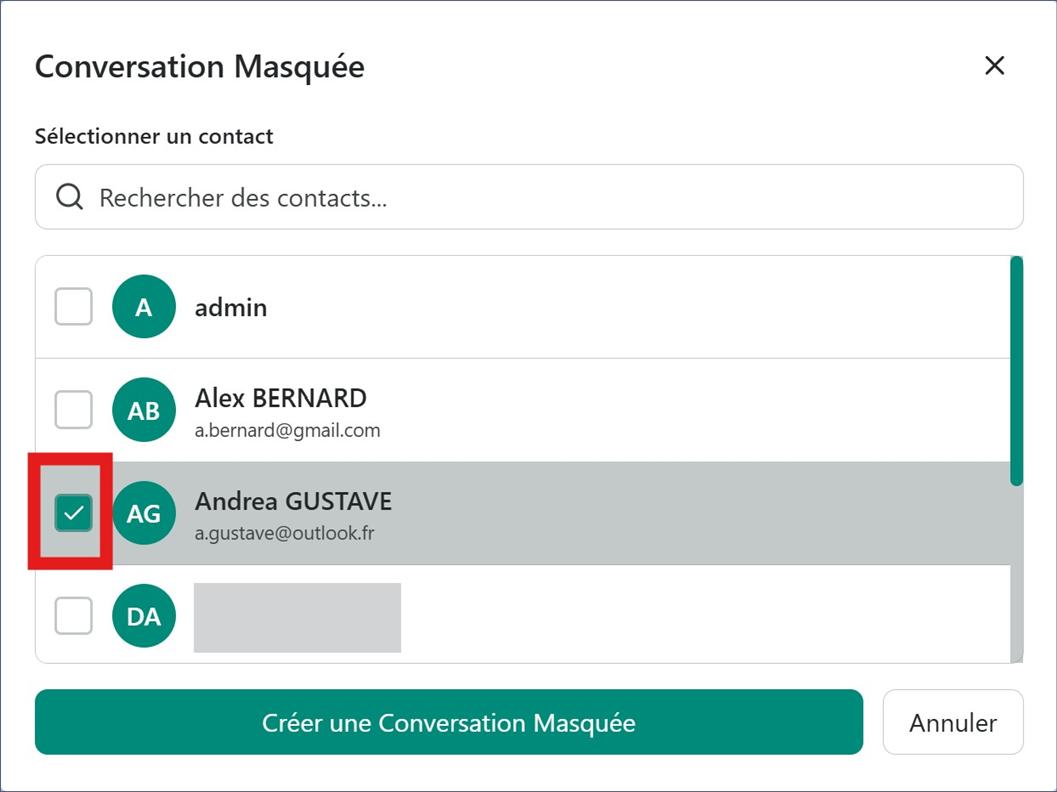
From Create, choose Hidden conversation and pick a contact.
Finish by tapping the Create icon at the bottom of the page.
Image: Create a hidden conversation
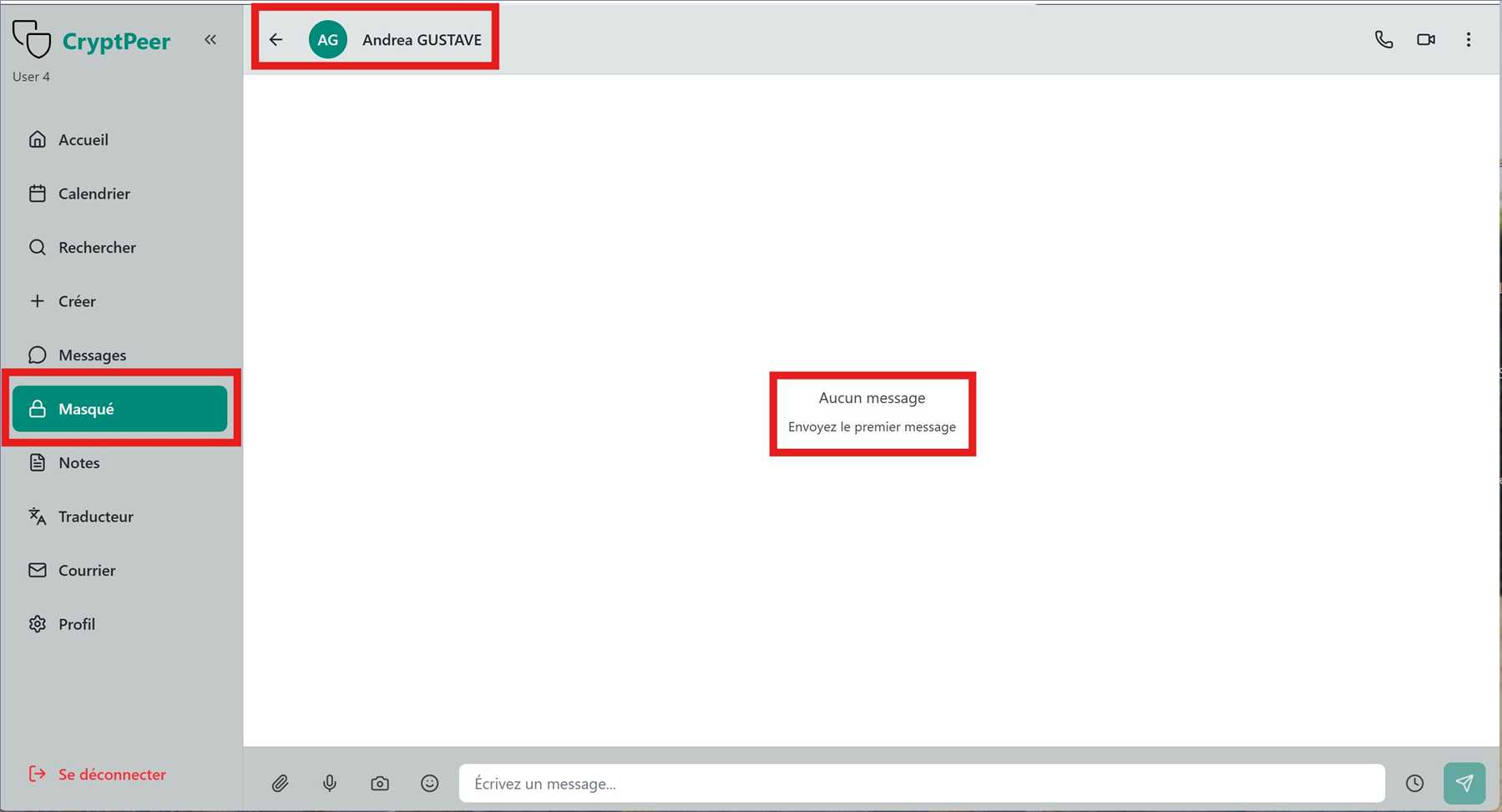
On the home page, open the Hidden tab: your contact appears and you can start chatting.
Image: Writing a hidden message
Messages stay encrypted on screen. To read them, tap the padlock icon.
Image: How to decrypt a hidden message
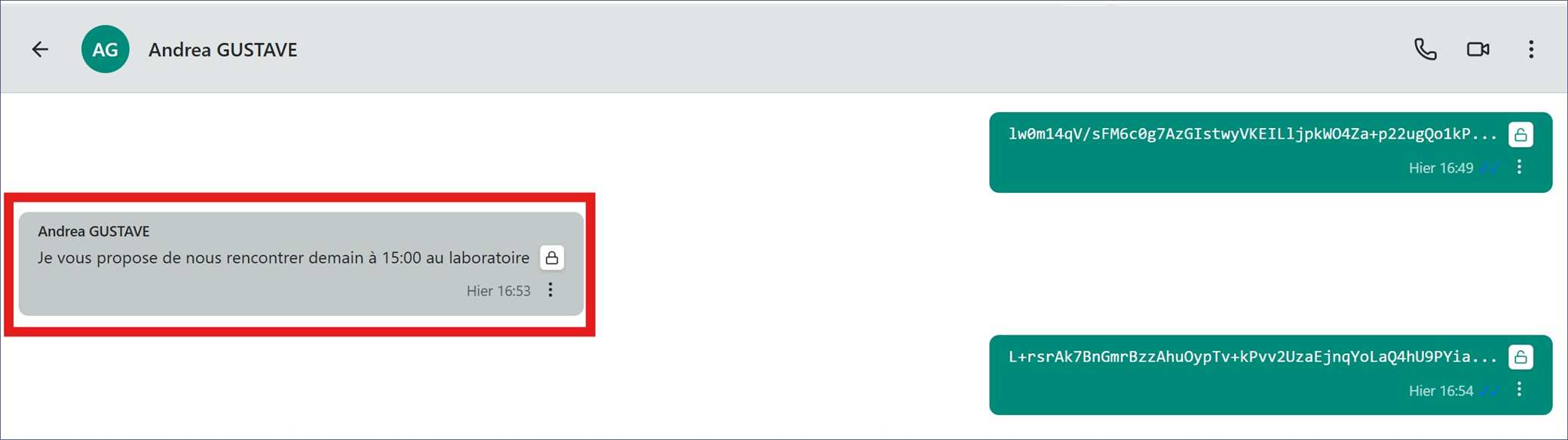
The message is decrypted. When you leave the chat, messages show as encrypted again.
Image: Decrypted message
4. Hidden tab — group conversation
Similarly, you can create a hidden group from the Create tab.
When the group exists, open the Hidden tab and start a group chat.
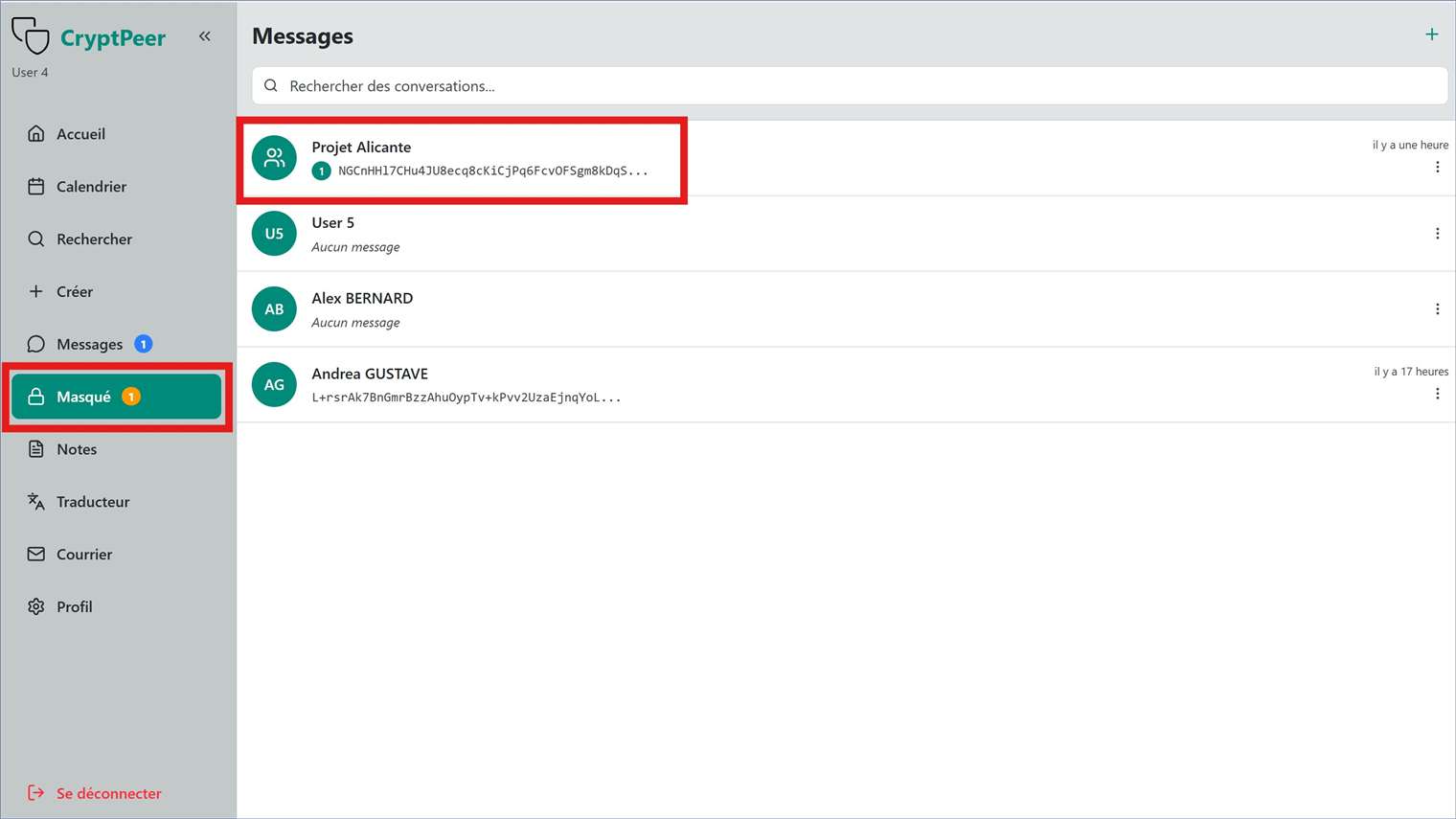
In the example below the group is named Projet Alicante; it shows 1 unread hidden message received.
Image: Hidden message in a group chat
5. Notes tab
Notes let you create, store and share sensitive information securely.
Each note has a title and body and is stored encrypted so your data stays private.
You can also turn notes into collaborative spaces
Several users can then view and edit the same note in real time, securely.
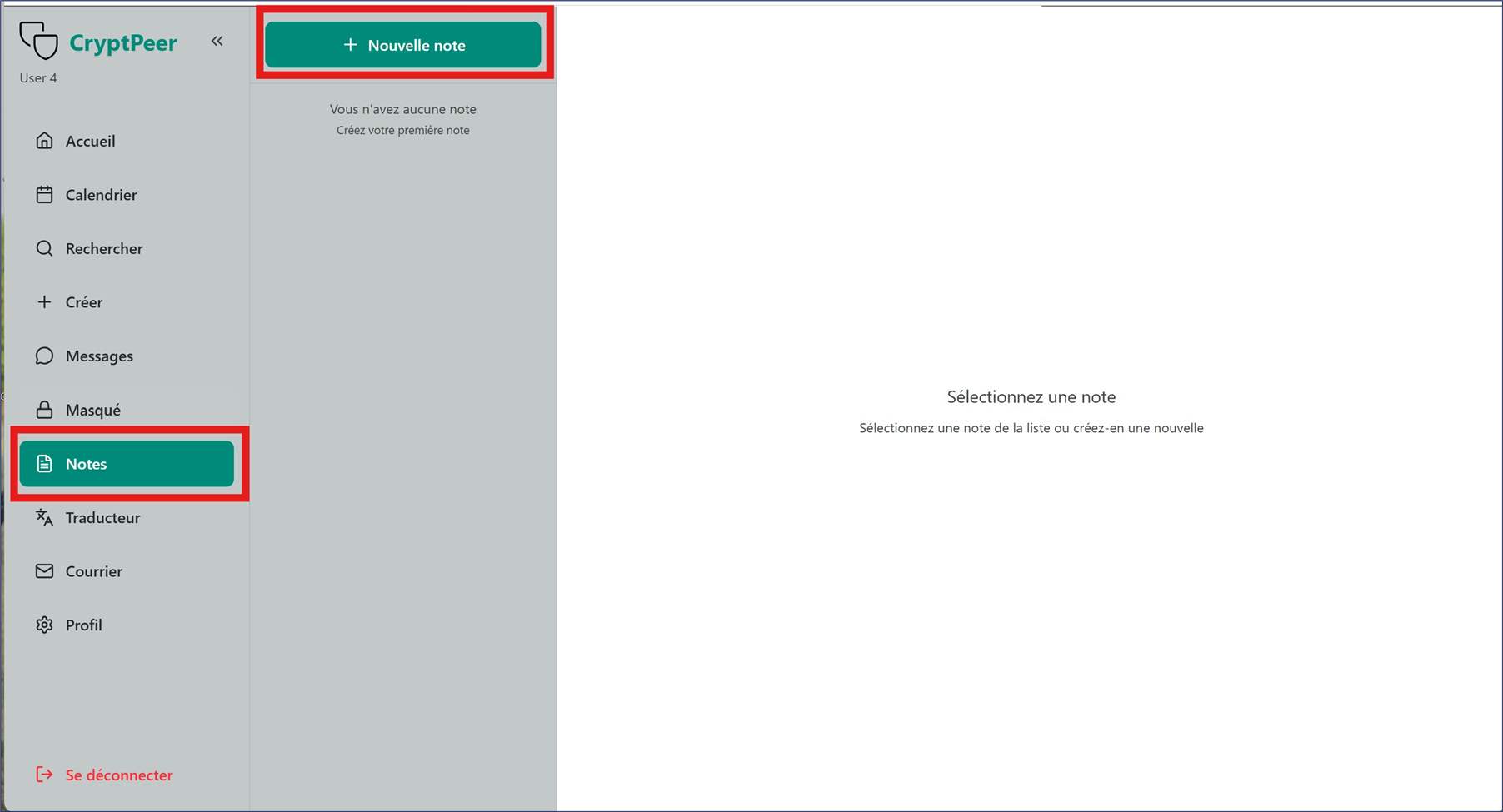
To create a note, tap + New note. Enter the note title, then write the content.
Image: Creating a note
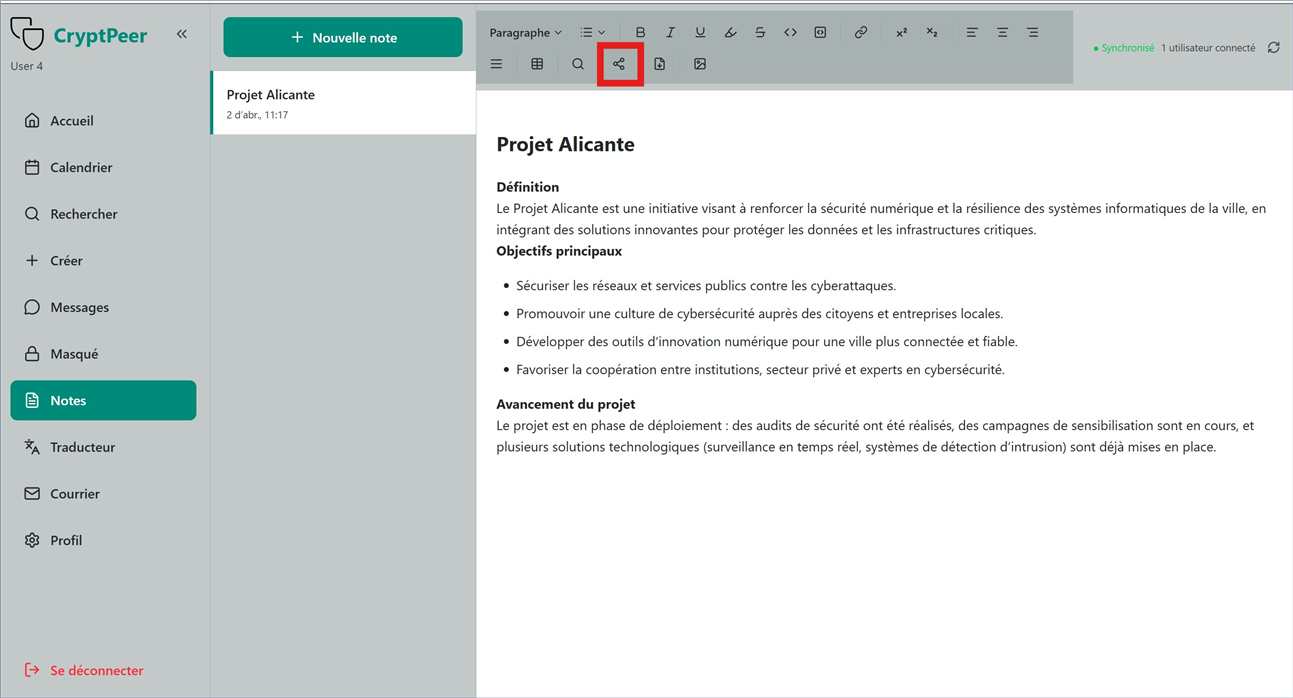
When the note is ready, to share it tap the indicated icon. You see authorised users and choose who to share with.
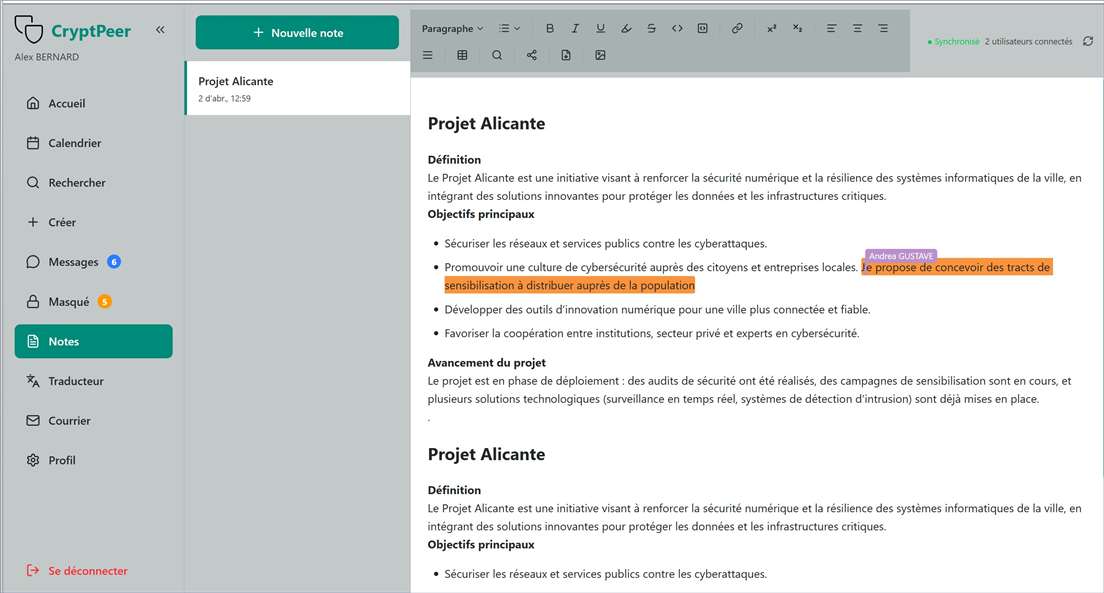
Each user can edit or extend the content. Several people can work at once; changes sync in real time on everyone’s screen.
Image: Sharing a note with several usersImage: Using the collaborative editing feature
In the example, Andrea GUSTAVE added a comment on the note and highlighted her text. Several tools are available to enrich the text.