CryptPeer — User guide
(Version 1.0 – January 2026)
Home and user interface
After you sign in, you reach the CryptPeer home page, with a side menu and an area for your organisation’s internal communication and the calendar.
The interface is designed to stay clear, ergonomic and readable on desktop and mobile.
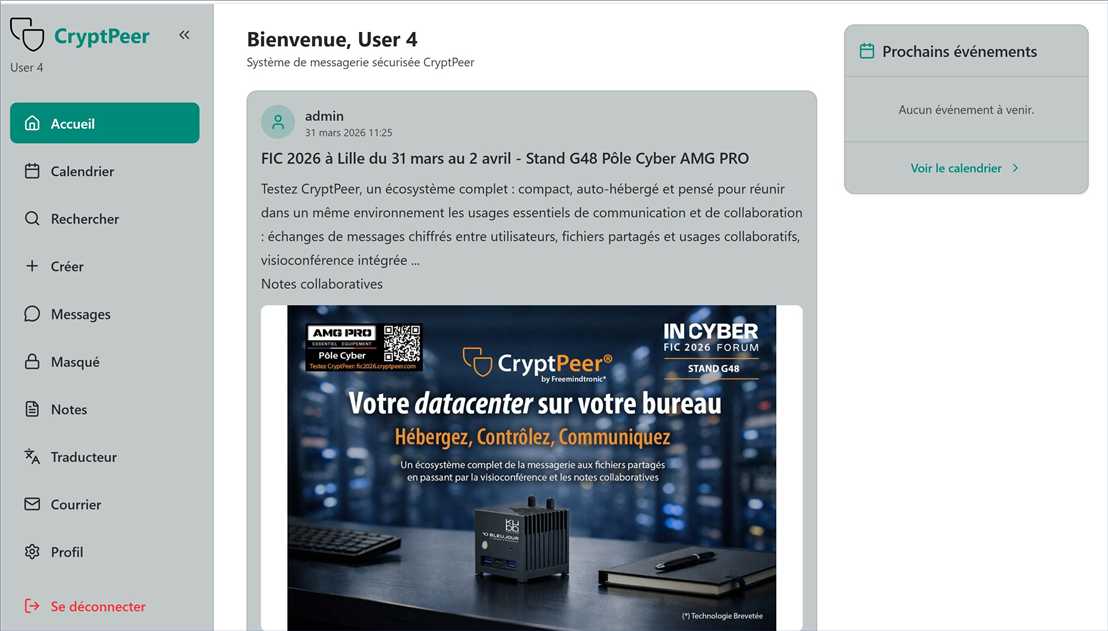
Home tab
The home screen shows the main features:
Messages — open your private or group conversations,
Search — find and connect with other authorised users,
Create — start new conversations,
- Notes, Hidden, Mail, Profile — extra privacy and organisation tools.
Home works as a simple dashboard: it quickly takes you to the feature you need.
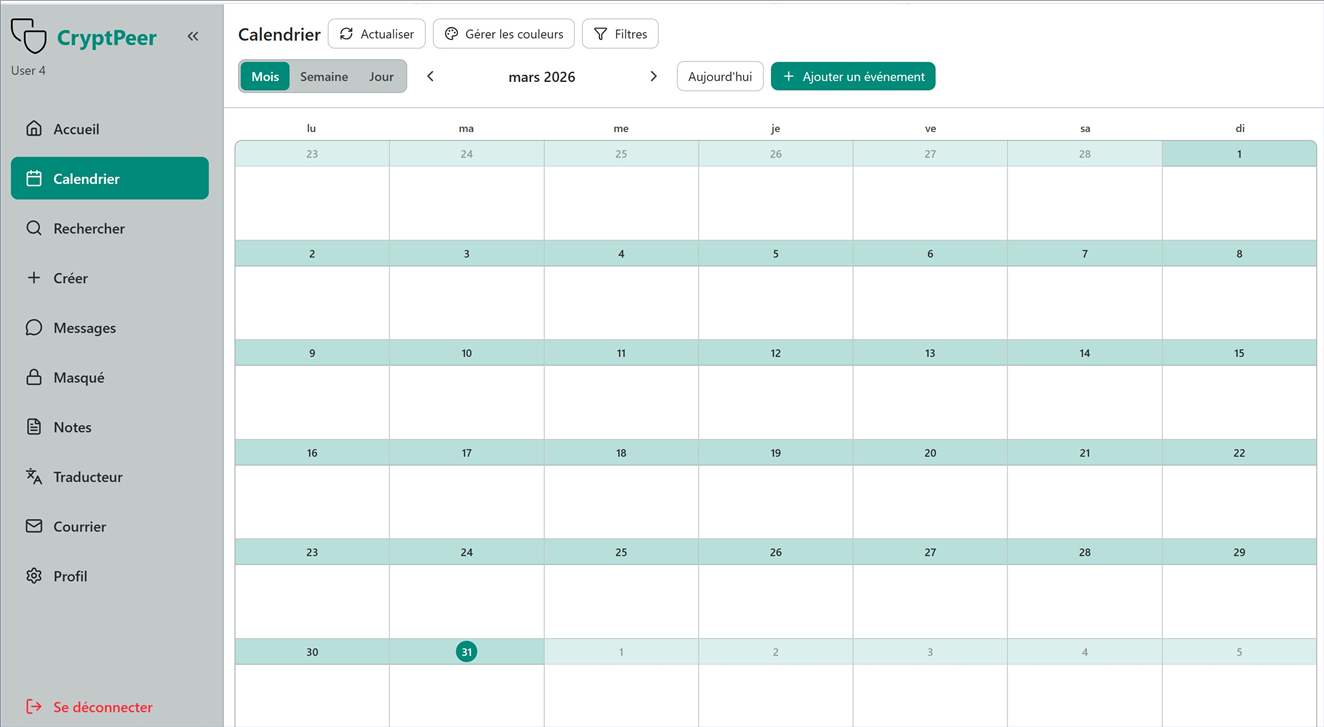
Calendar tab
Use this tab to manage events and share them with users you choose. You can use different colours for events (meeting, personal task, etc.).
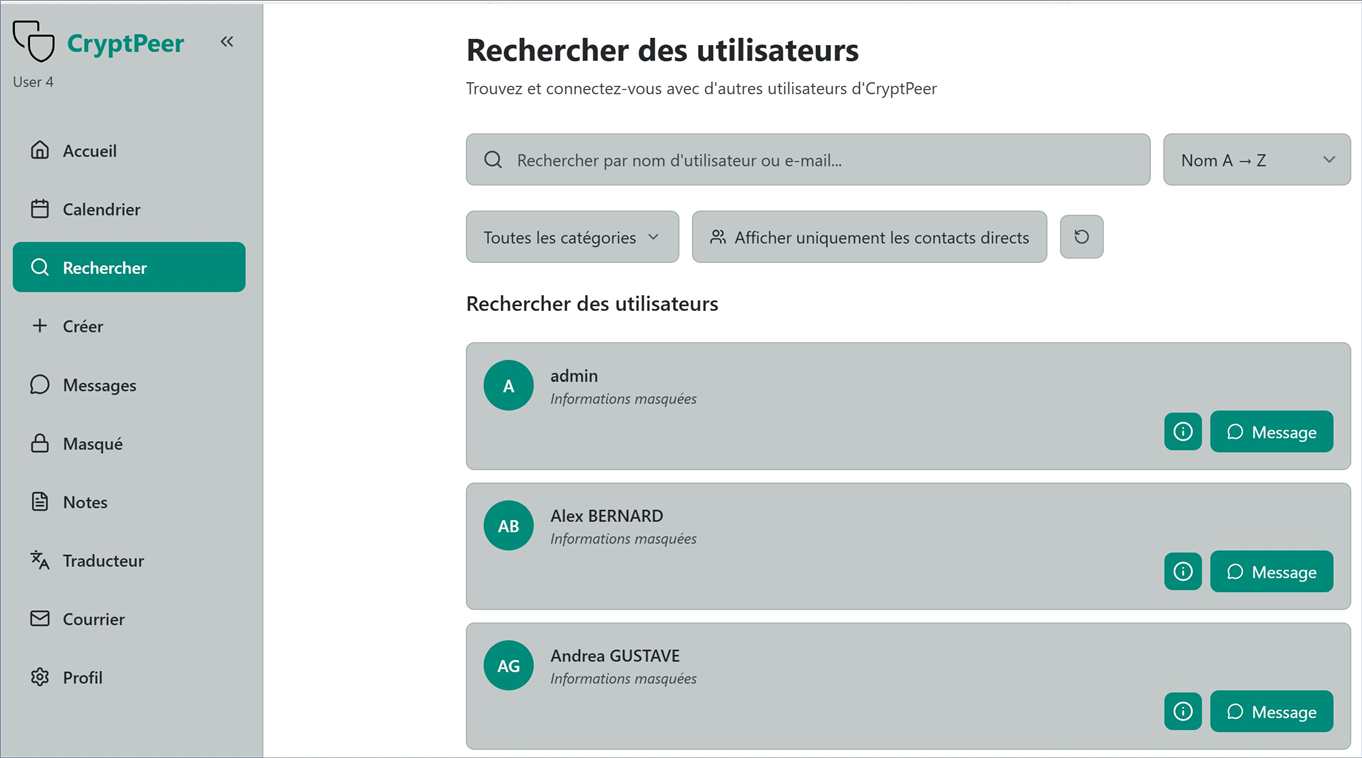
Search tab
Here you can find other users to chat with.
Search by username or email (according to your permissions). Once found, you can add the contact to a new conversation.
You only see users you are allowed to see — visibility depends on how your account was set up.
Create tab
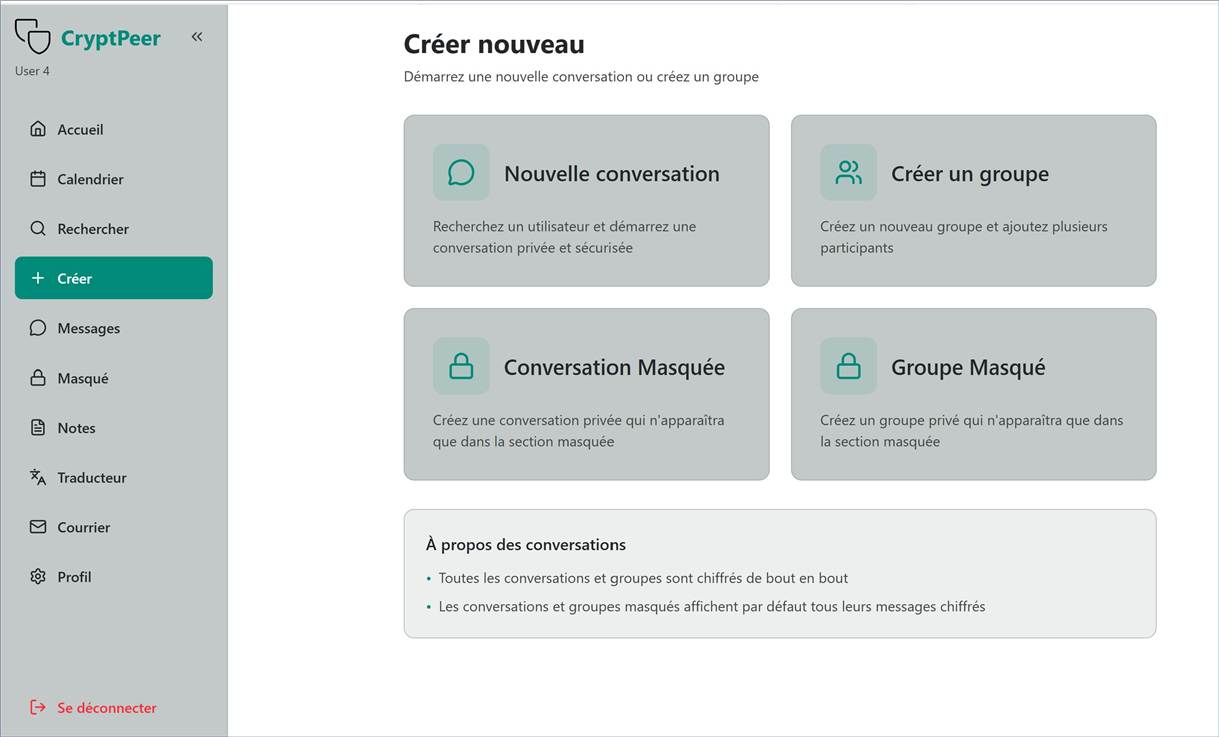
Create starts a new conversation.
You will typically see:
One-to-one conversation (two users),
Group conversation (several authorised users).
Every new thread is end-to-end encrypted from creation.
Messages tab
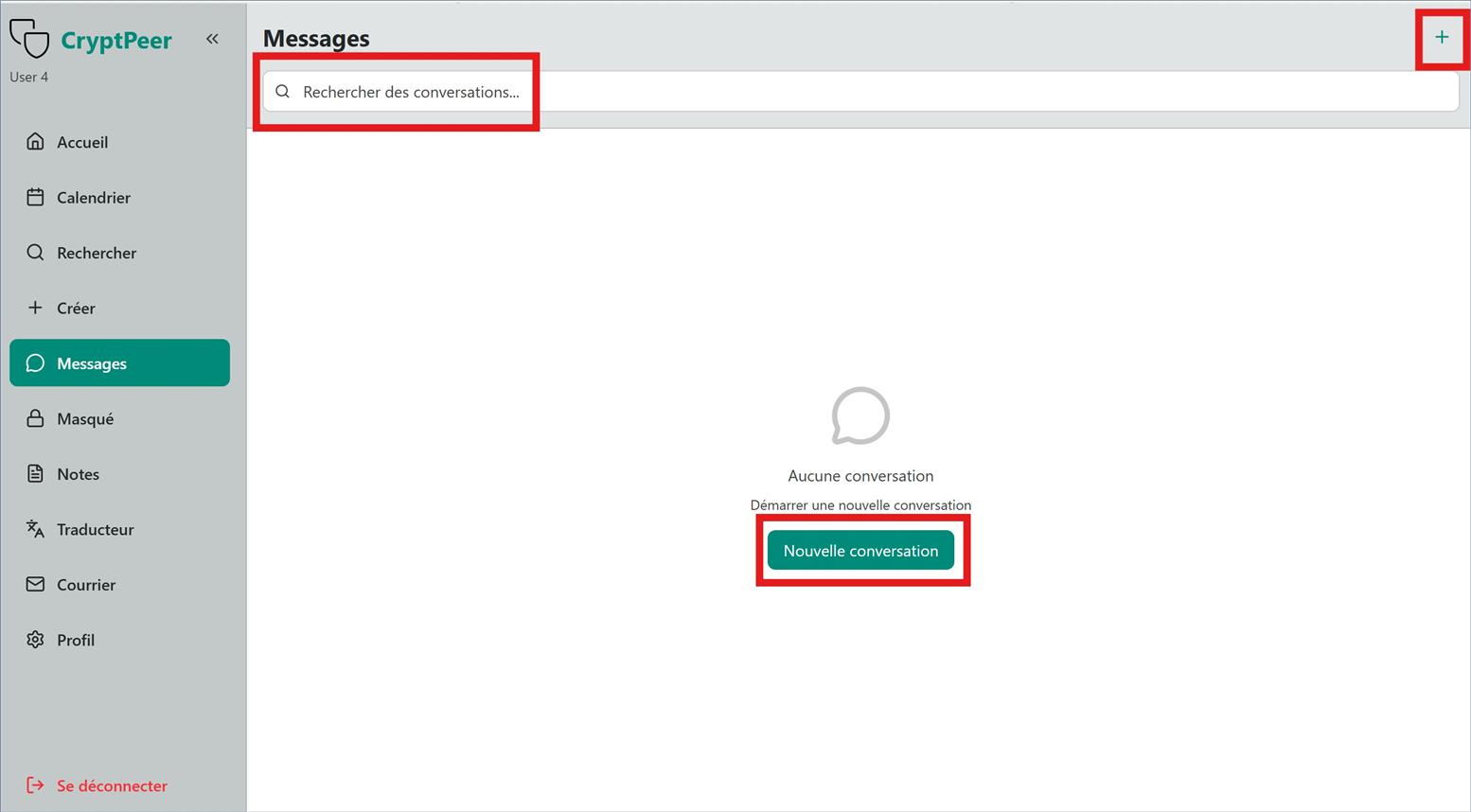
This central tab lists all active conversations.
On first sign-in, messaging is empty: no conversations appear yet.
That is expected — start a chat whenever you contact an authorised user. You can:
Find a conversation with the search field at the top,
Start a new chat with New conversation,
Or tap the “+” icon top right to open Create and start a discussion.
Hidden tab
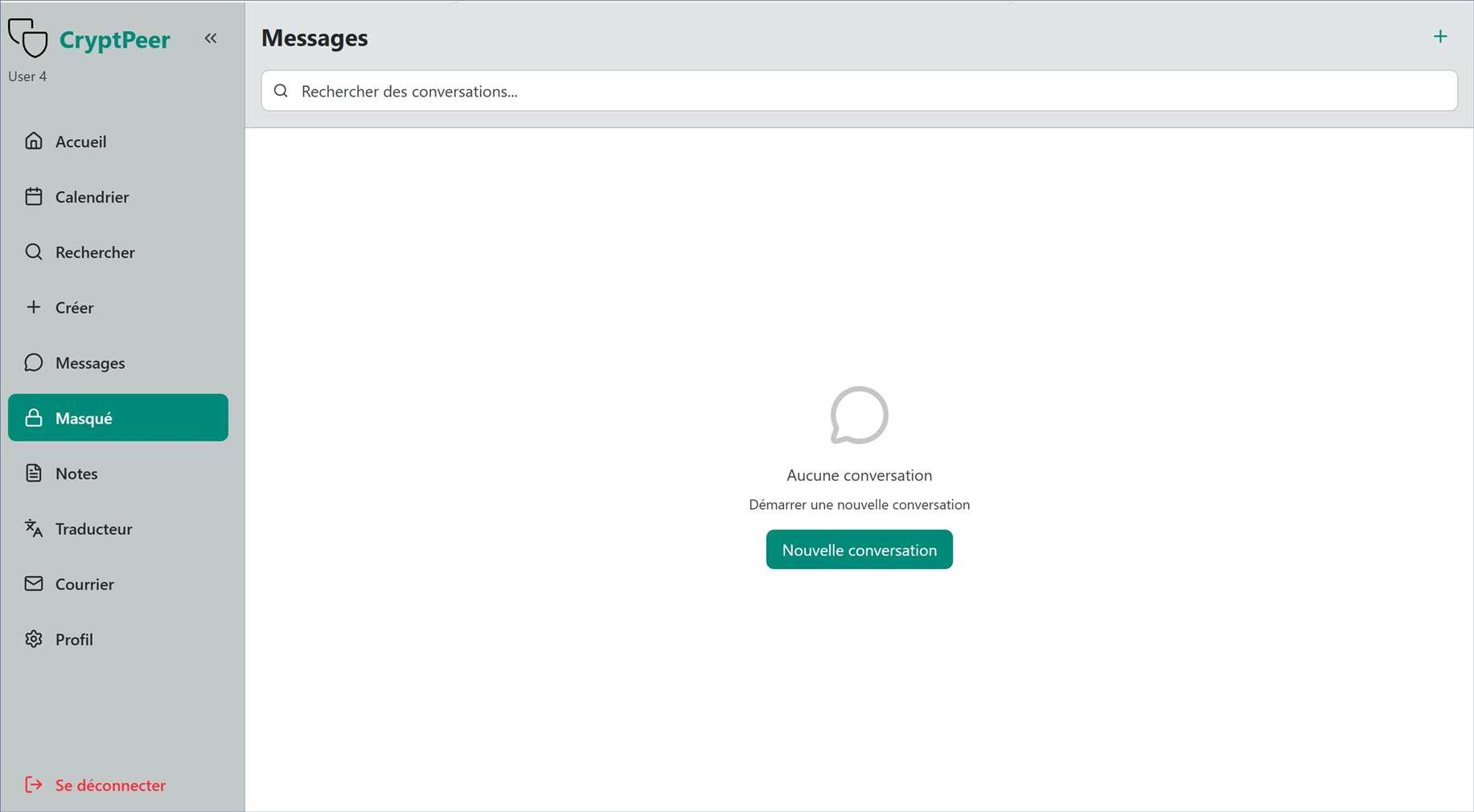
The Hidden tab lists sensitive conversations shown in encrypted form.
They appear in a separate list from your main chats.
You can open and read them anytime, with no extra login step.
Encrypted display simply protects content when you are not actively reading it.
This adds discretion: even on screen, hidden messages stay protected by end-to-end encryption.
Notes tab
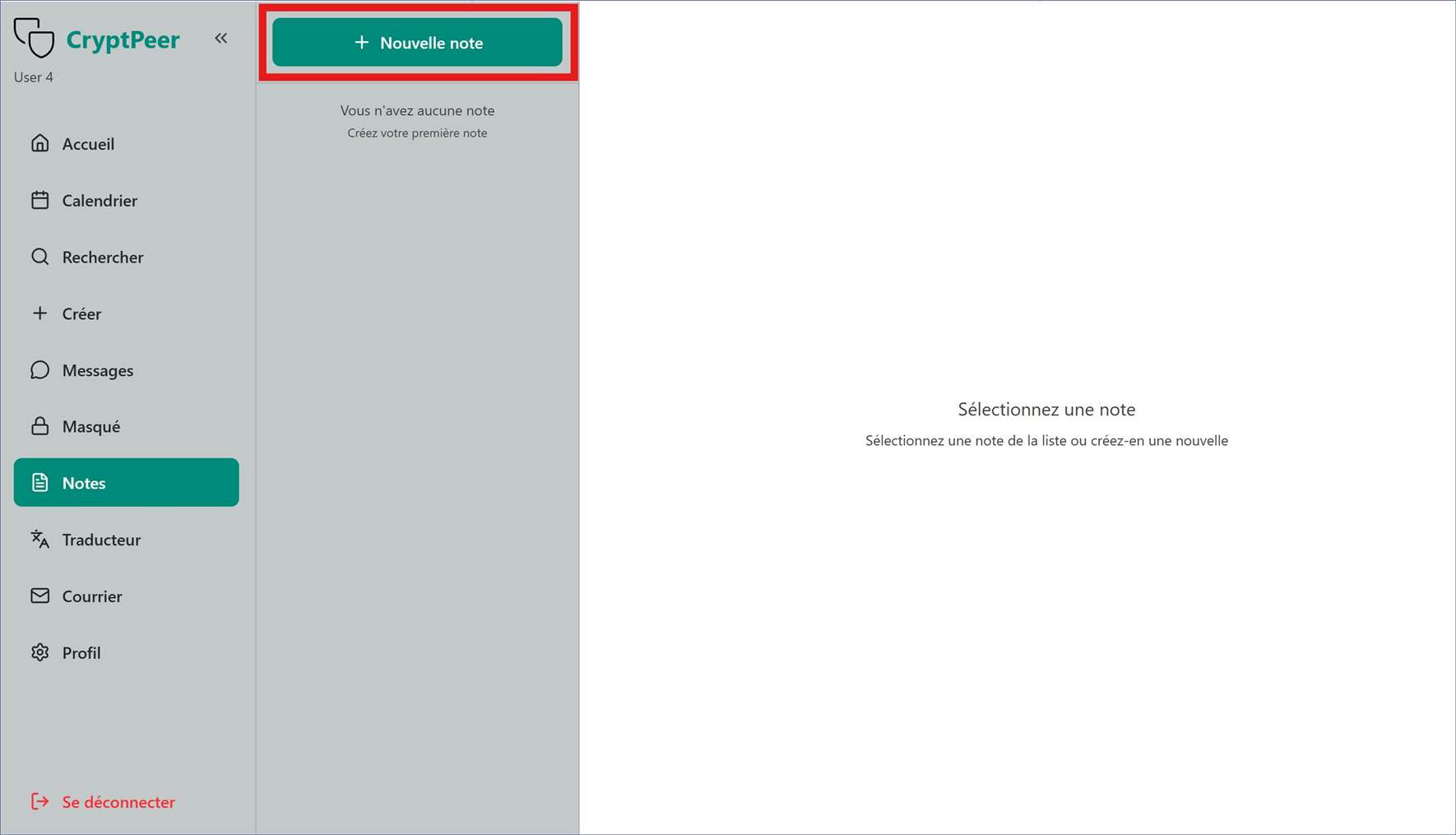
Notes lets you write, keep and optionally share notes inside CryptPeer. You can keep private notes or create collaborative notes for other authorised users. Personal or shared, notes use the same security and encryption as CryptPeer messaging.
Translator tab
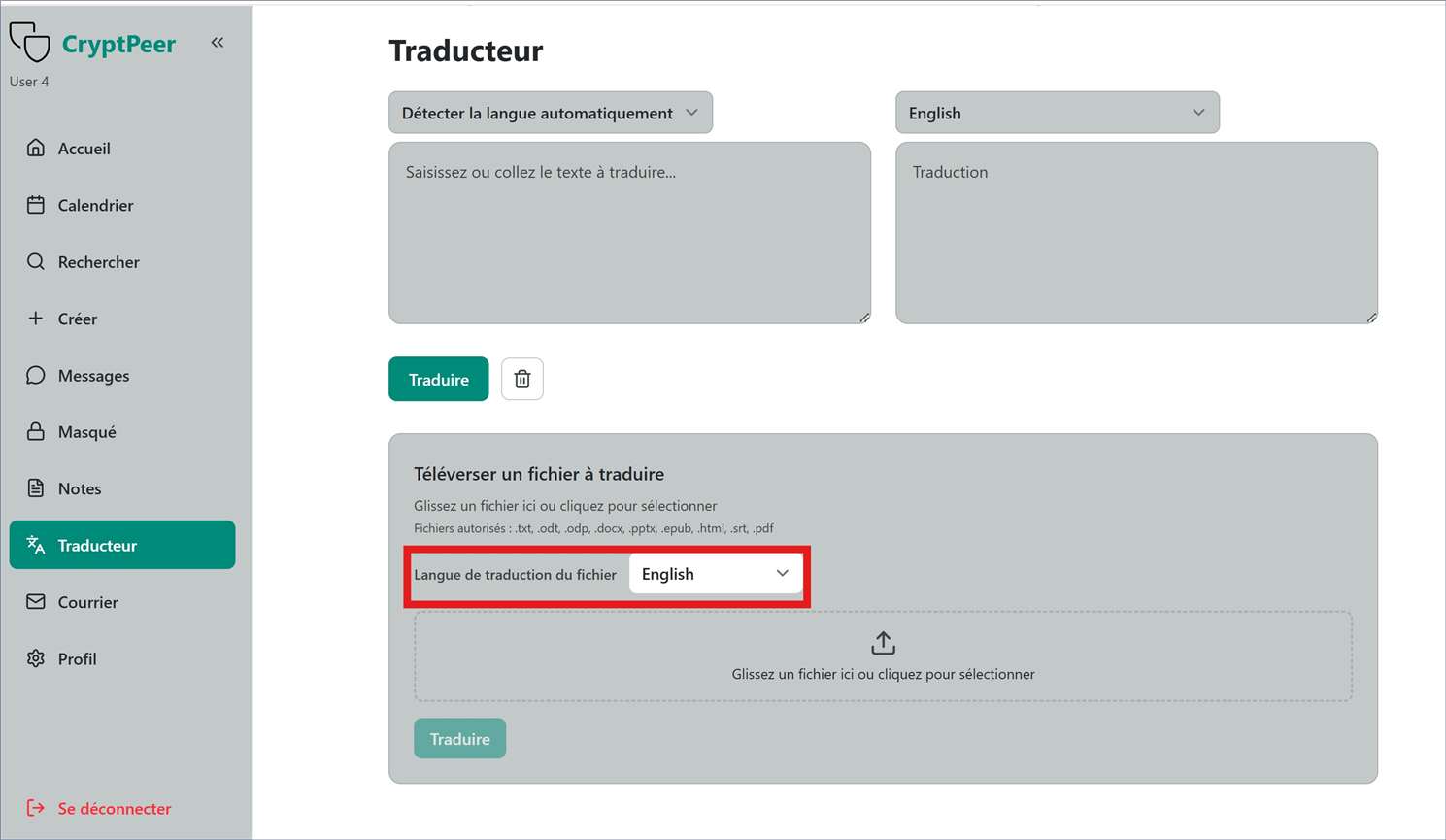
The Translator translates text or documents into many languages from within CryptPeer, for typed text or imported files. Dozens of languages are available.
Mail tab
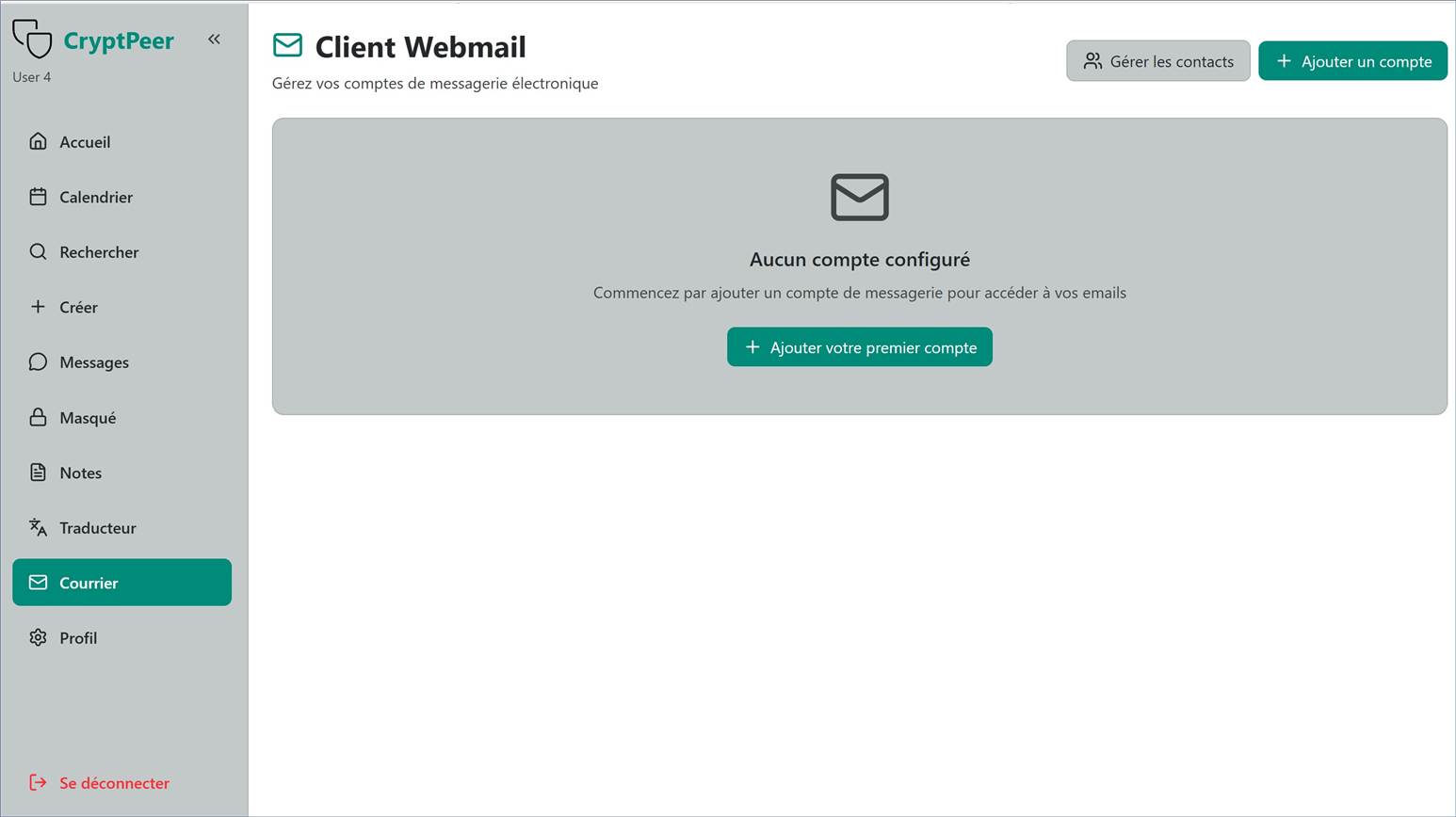
Mail connects and uses an external email account inside CryptPeer.
It works like built-in webmail with a secure bridge to your usual inbox (e.g. Gmail or Outlook).
Once connected, you can read, compose and send email while staying in the CryptPeer interface.
This keeps communications in one sovereign environment while matching CryptPeer’s privacy and security principles.
Profile tab
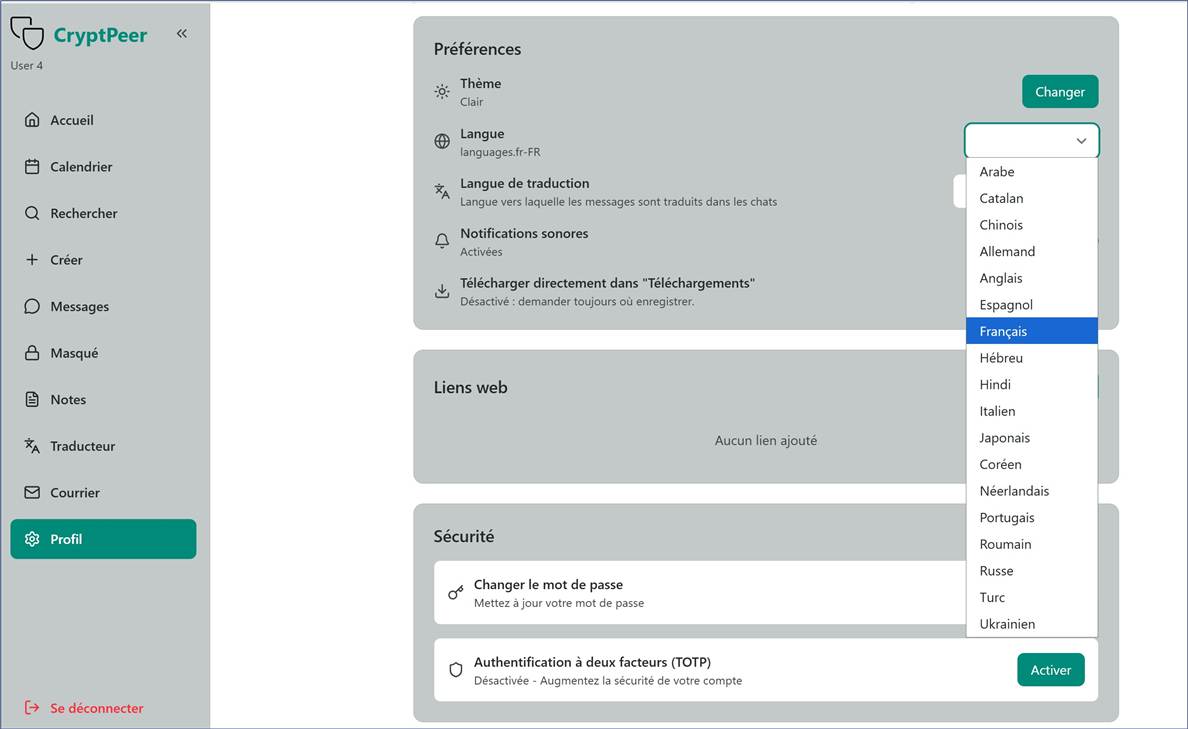
Profile and Settings hold your personal CryptPeer options.
You can review and adjust key security and privacy settings.
Sections include:
Preferences: 18 languages — choose the CryptPeer UI language,
Security: change password and enable two-factor authentication (recommended),
File encryption: protect or open documents encrypted with your user identity,
Exported conversations: re-read archived chats from encrypted JSON exports.
These features are explained in more detail in the following pages of the user guide.
Sign out
The Sign out link at the bottom of the side menu ends your session securely. Sign out when you finish, especially on a shared device.