Role overview
The Super Admin role covers advanced control: handling registration requests, traceability through logs, supervision of internal data, storage governance, license review and SMTP settings. It represents the highest level of operational responsibility and sovereignty over the CryptPeer instance.
The Super Admin can use all administrator features (users, categories, requests, etc.). For step-by-step guidance on those shared screens, see the Administrator user guide.
Registration requests
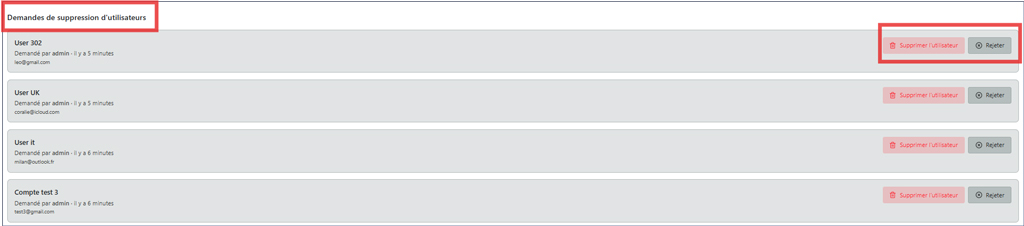
The first tab, “Requests”, is where account creation applications are processed. Permanently deleting a user account or rejecting a registration request is reserved for the Super Admin: an administrator may request it; only the Super Admin may execute the action after confirmation in the interface (e.g. Yes / No).
Depending on configuration, sign-ups may be open or disabled.
Good to know
When registration requests are disabled, the interface shows an inactive state; re-enable the feature to accept applications again.

Logs and traceability of administrative actions
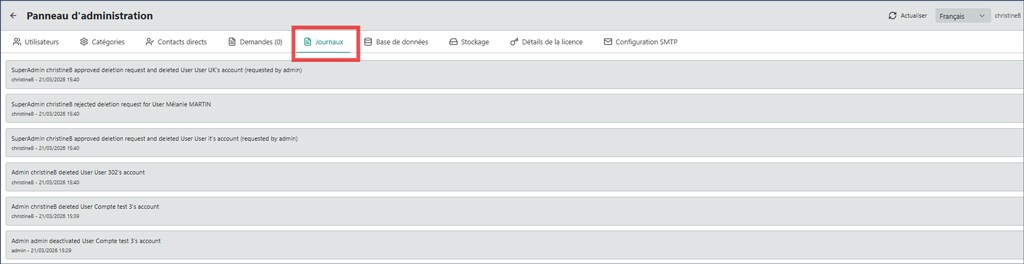
The Super Admin “Logs” tab automatically records all operations performed by administrators. This provides complete, timestamped, sovereign traceability of every action that affects system management.
Purpose of the logs
Logs are CryptPeer’s internal memory. They provide:
- transparency of administrative activity;
- traceability of decisions by each administrator;
- verifiability of operations for audit or internal review.
Data sovereignty
Logs are local and inaccessible to any third party. No data is sent outside the system or to the vendor.
Recorded data
Each administrative action is automatically logged with:
- the exact date and time of the operation;
- the name of the administrator who performed the action;
- the nature of the action;
- the functional scope of the operation.
Each log entry is immutable and cannot be edited, ensuring reliability and integrity of administrative records.
Review and oversight
From this area, the Super Admin can:
- browse the chronological list of recent actions;
- filter logs by event type or user;
- export or archive logs for internal audit when organizational policy allows.
Strategic role of the logs
Logs are not a surveillance tool but a mechanism for internal control and accountability. They help demonstrate compliant use of the system, strengthen internal trust and, where needed, show that no unauthorized action occurred.
Database
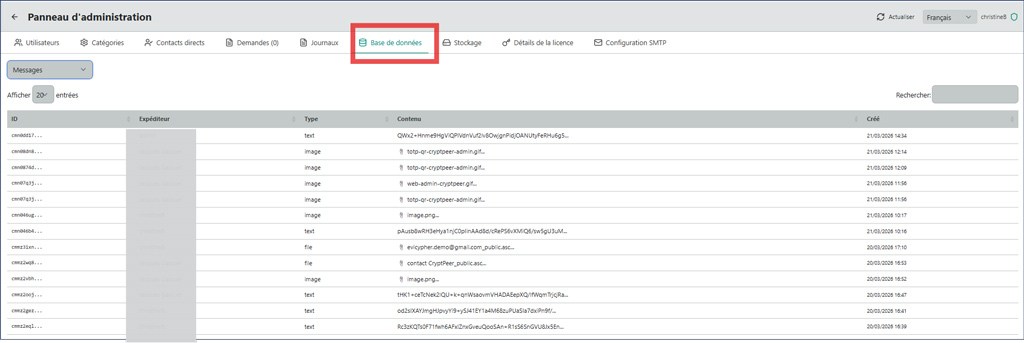
The “Database” tab provides non-technical supervision of CryptPeer’s internal entities. The Super Admin can inspect main tables — users, messages, groups, categories, conversations, sessions, etc. — without changing the schema.
This view helps verify data consistency, look up specific entries and monitor internal instance activity. The database remains under the licensee’s exclusive control on their infrastructure.
Storage
The administration panel provides a clear, concise view of system status. Administrators can monitor disk usage, manage upload folders, and configure upload restrictions.
CryptPeer can also manage additional storage spaces physically connected to the computer (external SSD/HD devices or dedicated volumes), depending on the deployed infrastructure.
Disk usage
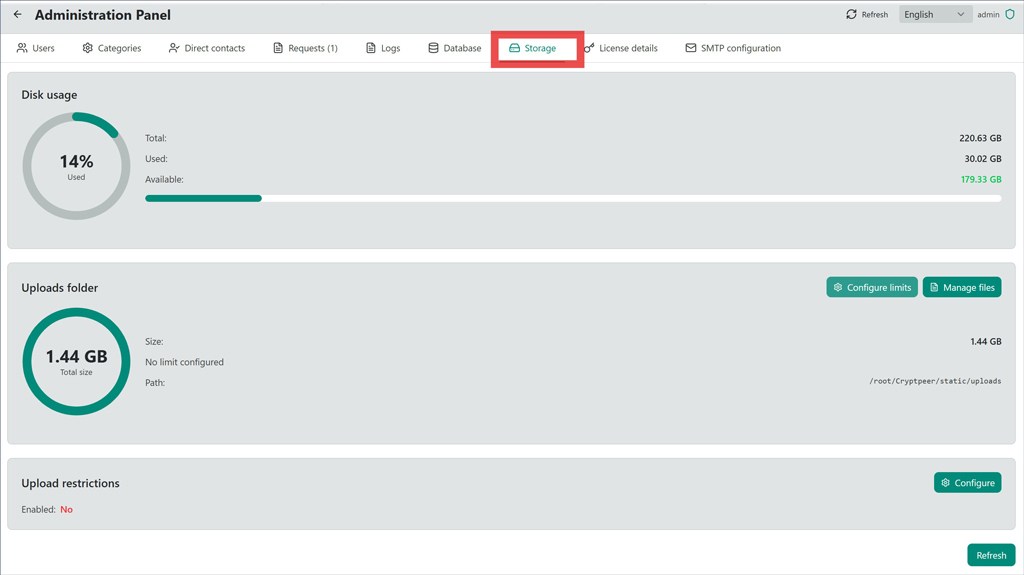
The “Disk usage” section provides a visual and numeric summary:
- Total capacity: 220.63 GB;
- Used space: 30.01 GB (14%);
- Available space: 179.33 GB.
A circular indicator visually shows consumed space, making it easy to quickly assess storage health.
Upload folder
The “Upload folder” section shows:
- Total size: 1.44 GB;
- Configured limit: none;
- Path:
/root/crypteer/static/uploads.
Two main actions support granular management:
- Configure limits — to better control storage usage;
- Manage files — to directly handle files present on the server.
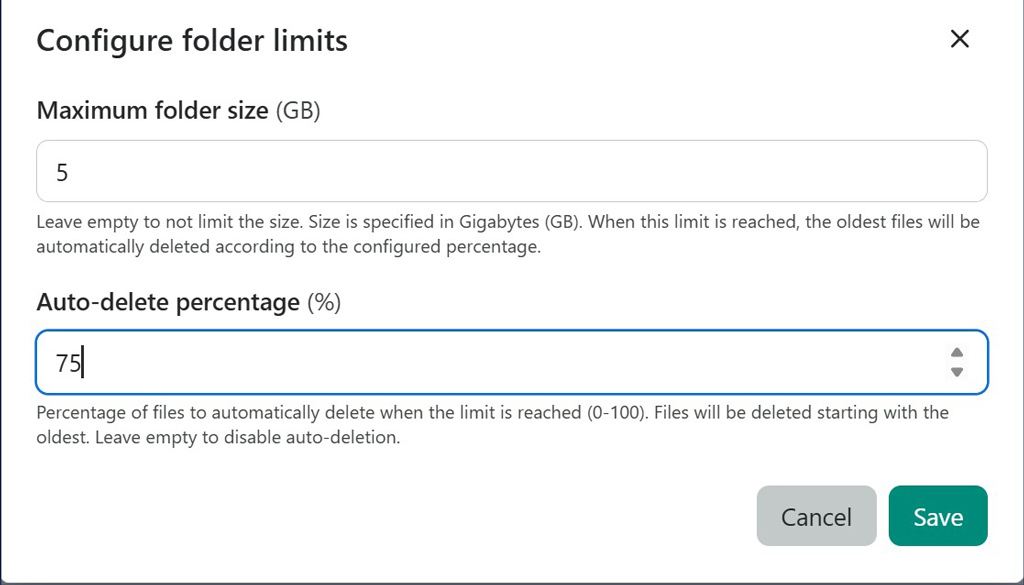
Maximum folder size (GB), to be defined: 5
Leave empty to keep no limit. Size is specified in Gigabytes (GB). When this limit is reached, the oldest files are automatically deleted according to the configured percentage.
Automatic deletion percentage (%), to be defined: 75
Percentage of files to delete automatically when the limit is reached (0-100). Files are deleted starting with the oldest. Leave empty to disable automatic deletion.
Do not forget to save after setting these parameters.
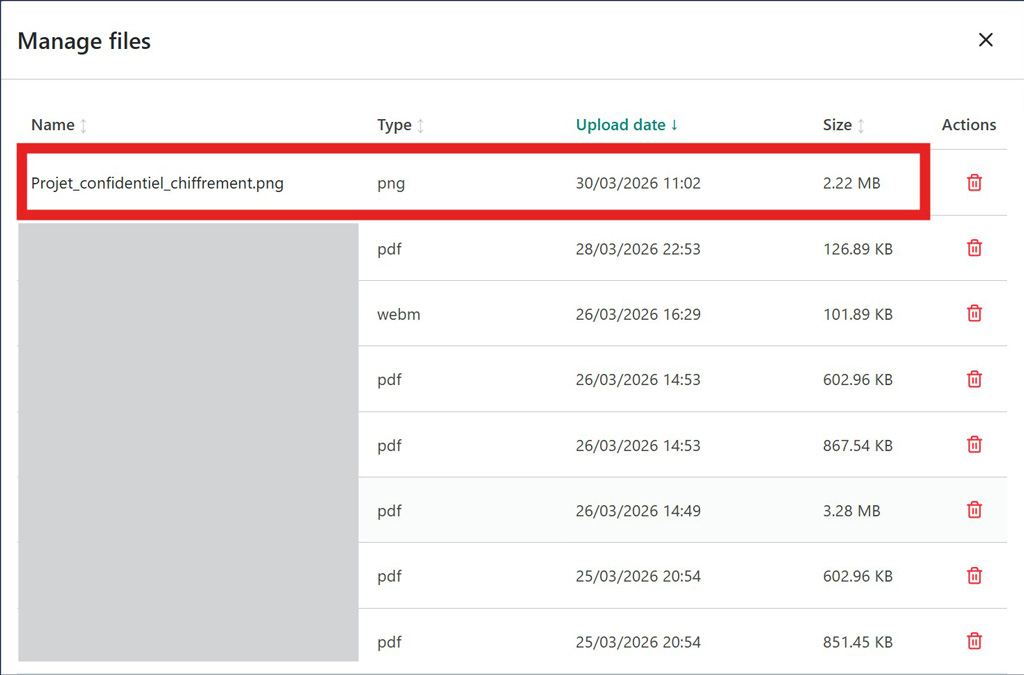
In the file management panel, you can view all files on the server (name, file type, upload date, and size). You can delete one or more files as needed.
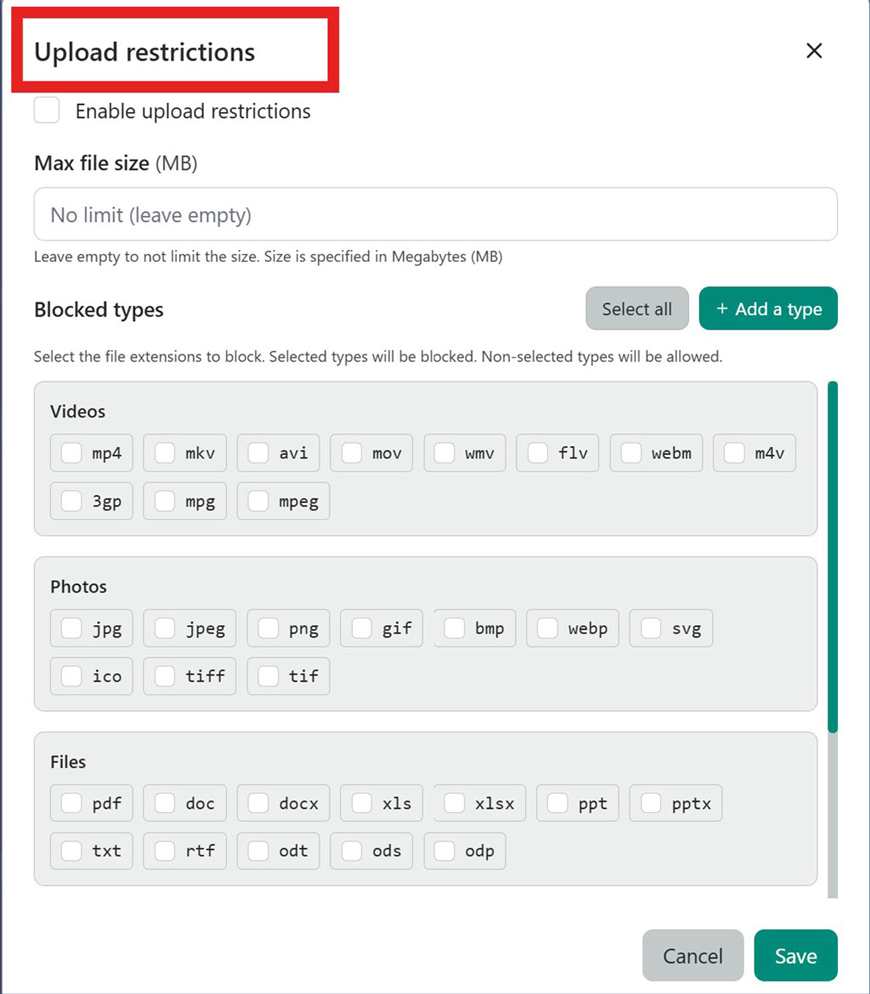
Upload restrictions
Enable upload restrictions, then define:
- a maximum file size;
- allowed or blocked file types.
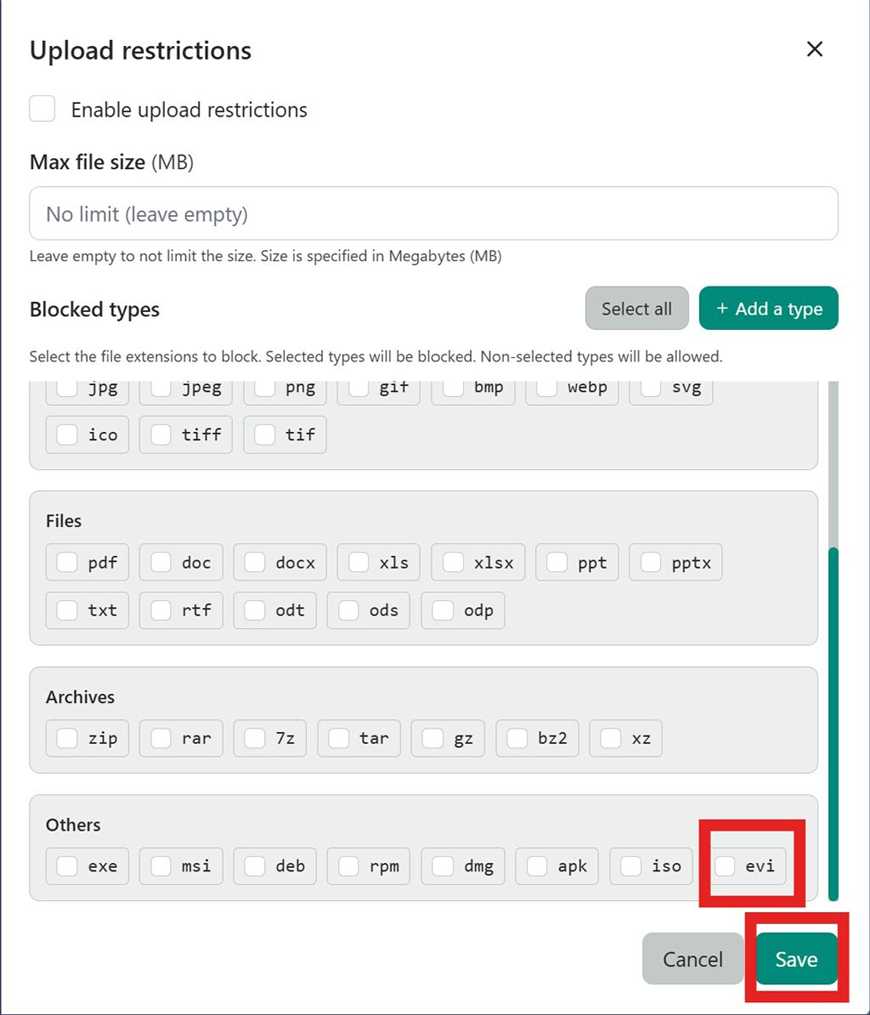
You can add a specific file type. Here, files with the .evi extension
correspond to files encrypted with Freemindtronic extensions.
Then click Add and Save.
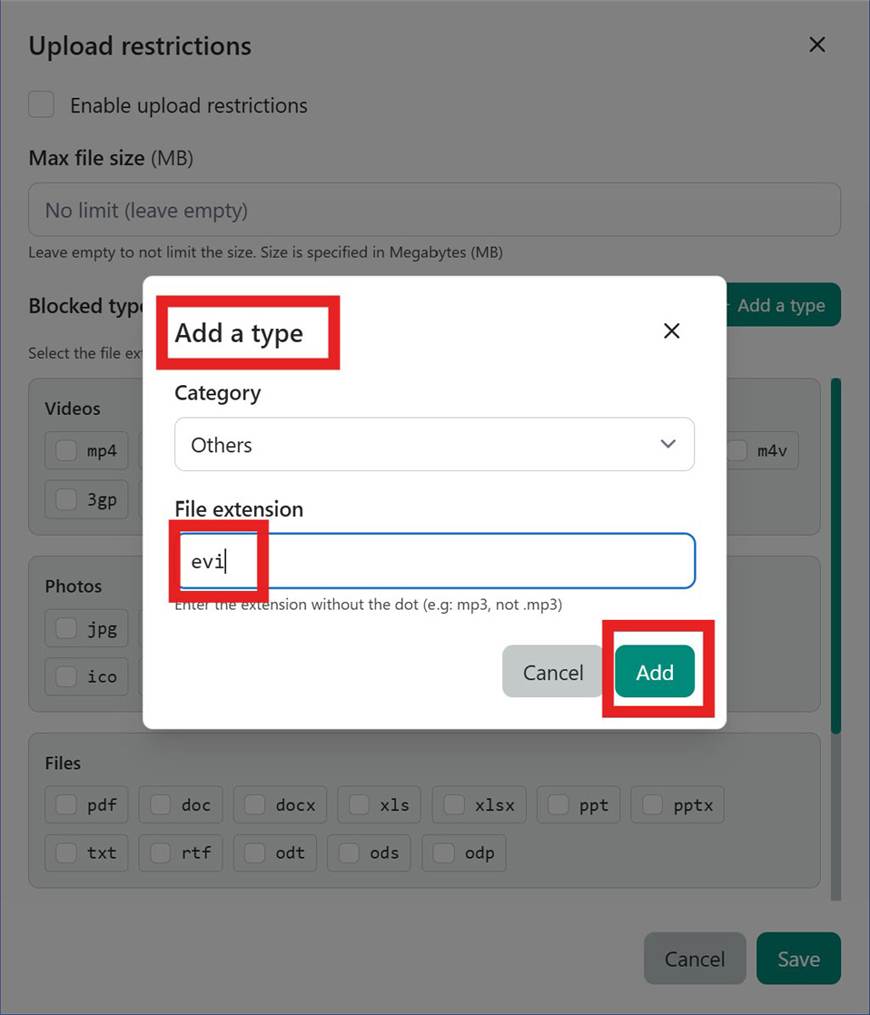
.evi extension appears in the configured type listGood to know
The “Refresh” button at the top right of the panel updates storage statistics and lists after a change.
License details
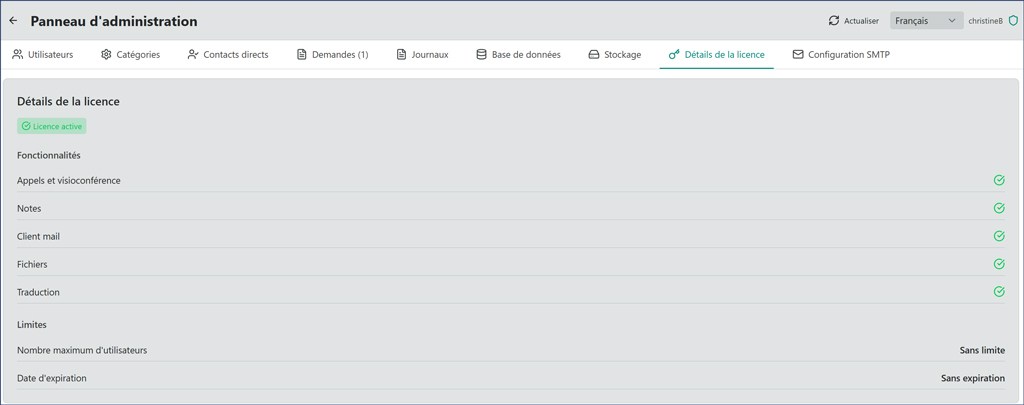
The “License details” tab gathers information about your CryptPeer license: status, validity, functional scope and any limits for your edition.
The Super Admin can confirm the instance stays aligned with purchased rights without leaving the administration panel.
SMTP configuration
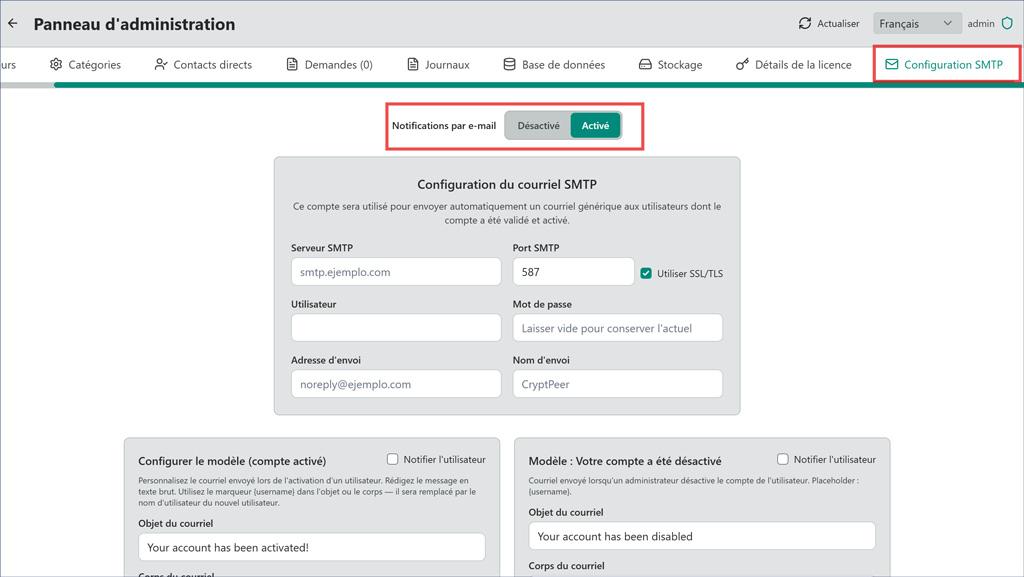
The “SMTP configuration” tab sets the mail server used for transactional email (notifications, alerts, password resets, etc.) from the instance.
Hosts, ports and authentication remain under your control on your infrastructure.
Sovereignty by Design
The Super Admin scope follows CryptPeer’s Sovereignty by Design doctrine: control, evidence and accountability belong entirely to the licensee, with no unilateral access by a third party.
Requests, logs, data supervision, storage, license and SMTP settings are therefore local, verifiable, sovereign control instruments.